
Hard drives rarely fail without warning. Early signs like sluggish performance, unusual clicking noises, or read/write errors are often your last chance to save your data. HDDScan is a powerful, free diagnostic utility that helps you monitor the health of your HDDs, SSDs, and external drives.
What is HDDScan?
HDDScan is a specialized utility designed to:
Test Storage Health: Compatible with HDDs, SSDs, and USB drives.
Read S.M.A.R.T. Attributes: Provides deep insights into drive reliability.
Scan for Bad Sectors: Identifies physical surface errors.
Monitor Temperature: Prevents overheating issues.
⚠️ Important: HDDScan is a diagnostic tool only. it does not repair physical damage or recover lost data.
Step-by-Step:
How to Download HDDScan Safely
Step 1: Visit the Official Website To ensure you are downloading a safe and unmodified version, always use the official source: www.hddscan.com.
Step 2: Download the Latest Version Click the download button for the most recent stable release.
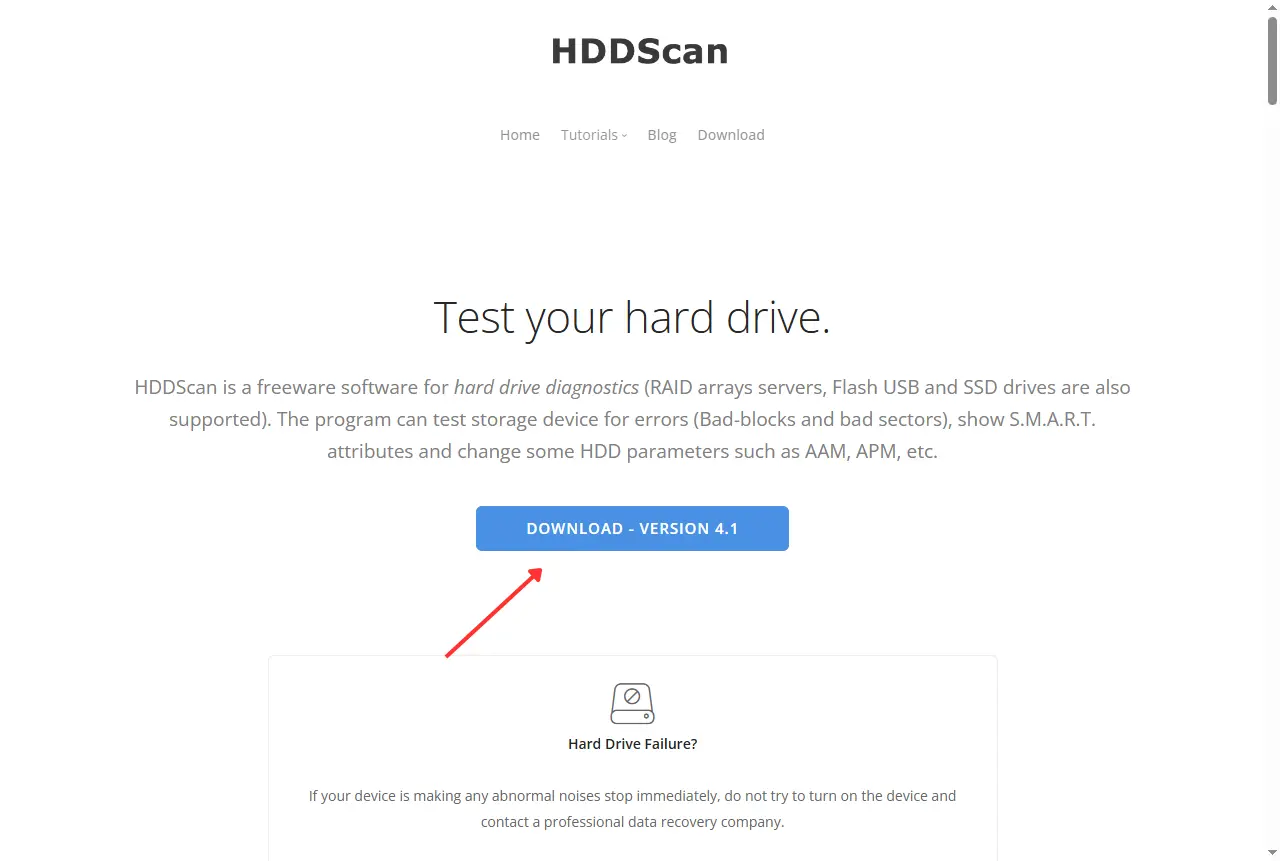
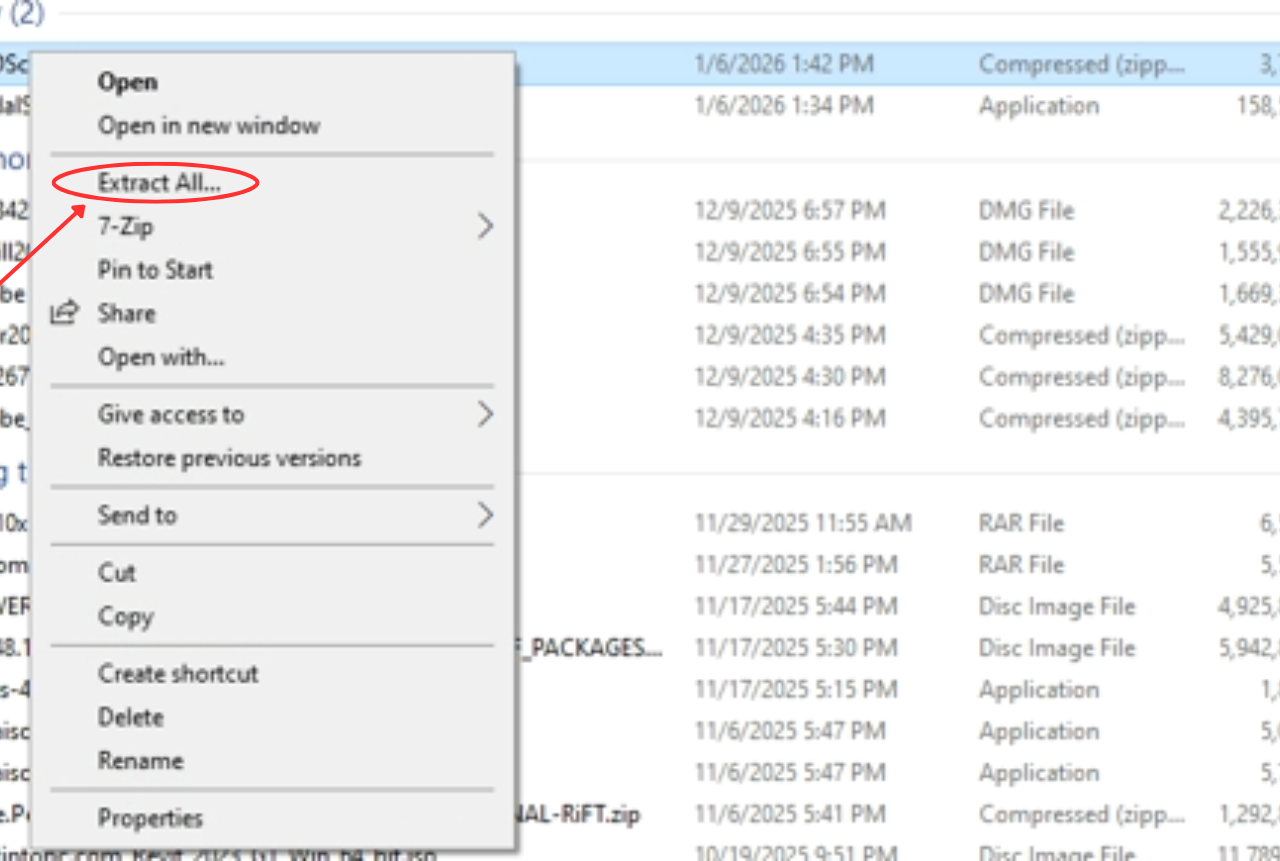
Step 3: Extract the Files Since the tool is portable, it doesn't require installation:
Right-click the downloaded .zip file.
Select Extract All.
Choose your destination folder.
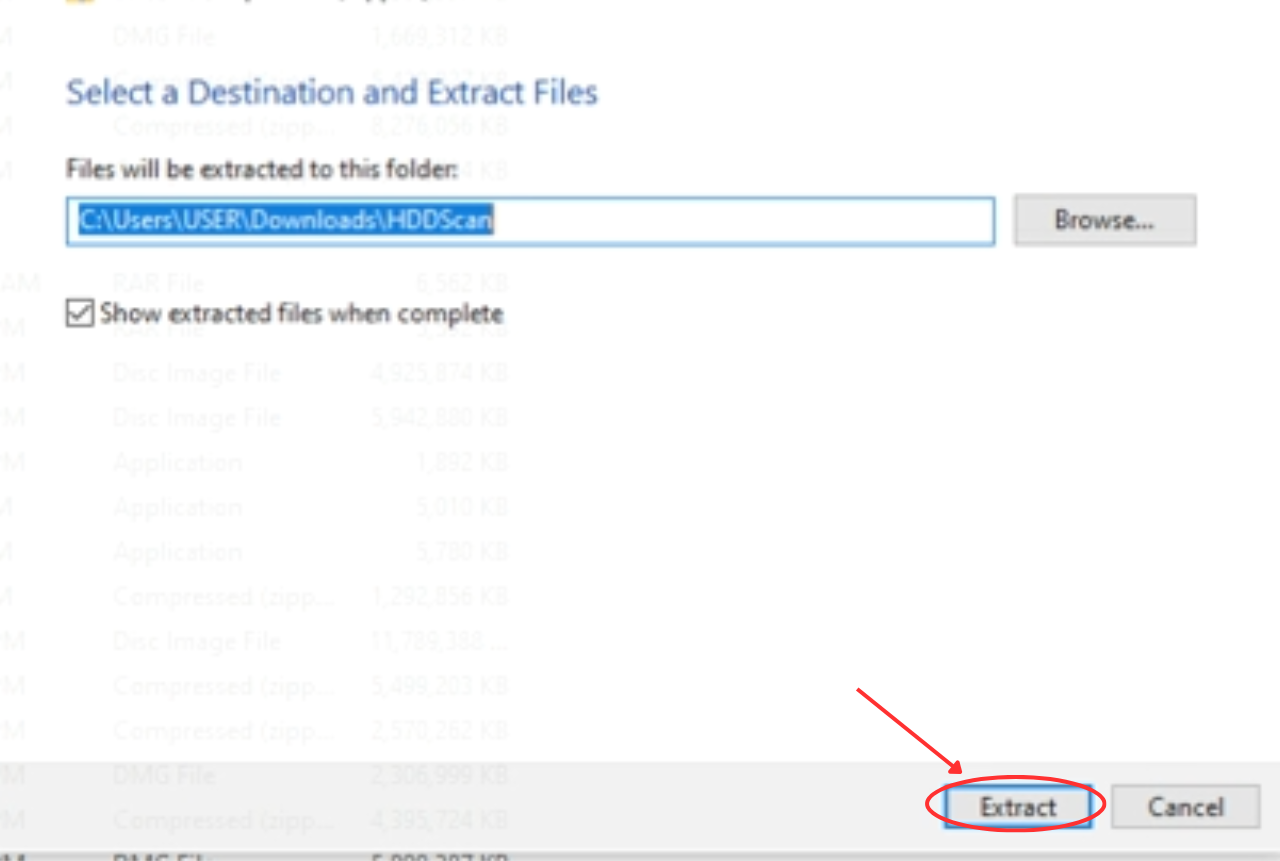
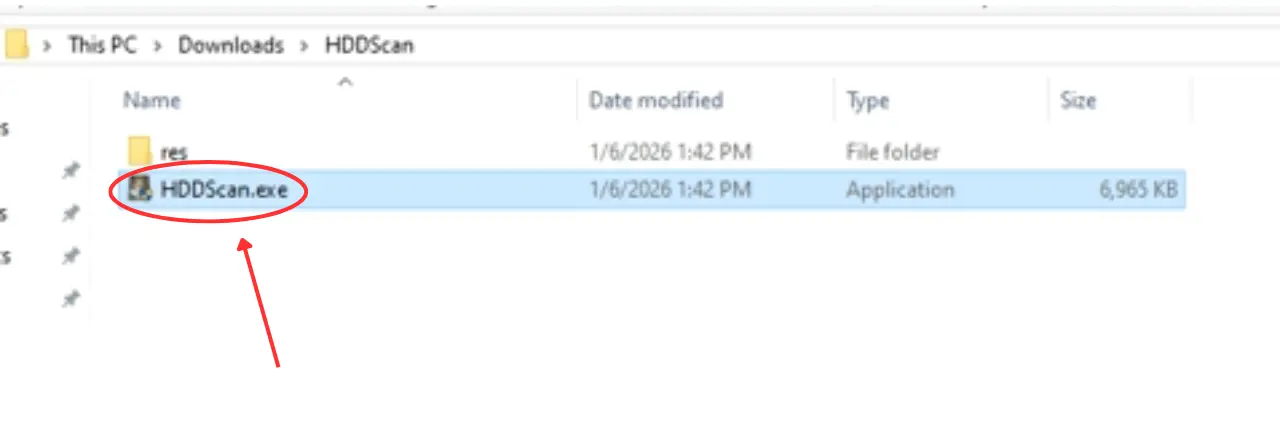
Step 4: Run the Application Open the folder and double-click HDDScan.exe. If a Windows Security prompt appears, select "Run anyway."
How to Diagnose Your Drive Health
1️⃣Select Your Drive Open the application and use the dropdown menu to select the specific drive you wish to test.
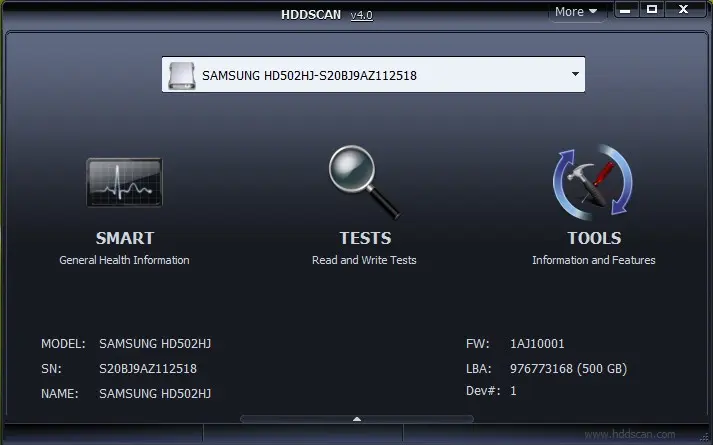
2️⃣ Check S.M.A.R.T. Status Click the S.M.A.R.T. button. This is the quickest way to see if your drive is failing.
✅Green Values: The drive is healthy.
⚠️Red/Warning Values: High risk of imminent failure.
3️⃣ Run a Surface Test (Optional) Click Tests and choose Verify or Read.
Avoid "Erase": This will permanently delete your data.
When Should You Seek Professional Help?
Stop using the drive immediately and contact a specialist if:
HDDScan reports Bad Sectors or S.M.A.R.T. Warnings.
The drive makes clicking or grinding noises.
The system frequently freezes when accessing the drive.
⚠️ Warning: Repeatedly testing a failing drive can lead to permanent data loss. Back up your files immediately before running any extensive tests.
Professional Data Recovery in Bahrain
If your drive is inaccessible or showing critical errors, Hex Technology is here to help.
We specialize in:
Advanced HDD & SSD Recovery
External & USB Drive Solutions
RAID & Critical Data Cases
📍 Visit us at Hex Technology
📞 Contact us: +973 33217825