
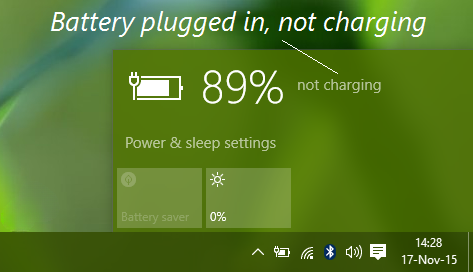
It is essential to identify which component is causing the charging failure. A laptop may appear to be working perfectly, only to suddenly shut down or stop indicating that it is receiving power when plugged in.
Initial Troubleshooting: When facing this issue, both the laptop and the AC adapter must be inspected by a professional. The problem usually stems from one of three sources:
The Power Adapter: The charger itself may be faulty.
The Battery: The battery may have reached the end of its lifespan or is damaged.
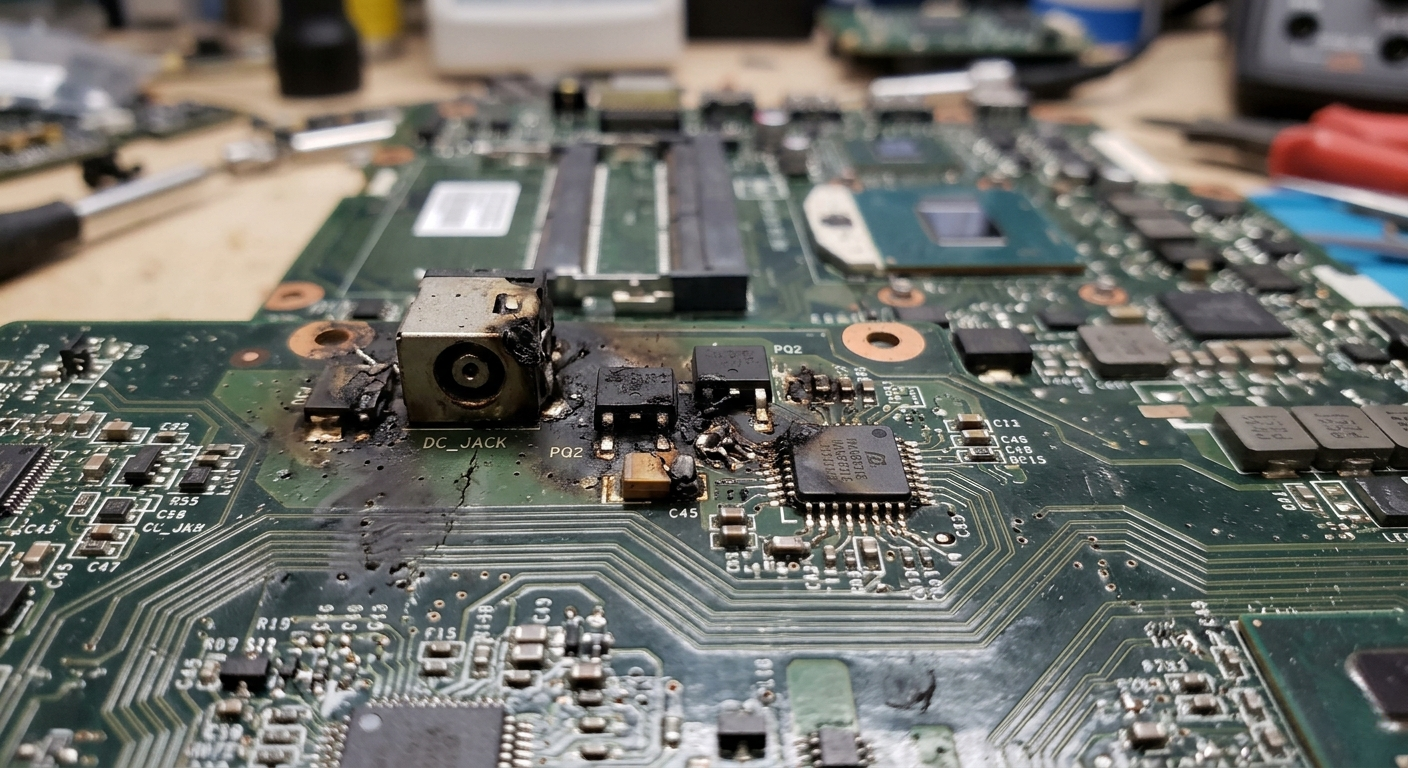
The Charging IC (Integrated Circuit): If the charger and battery are fine, the issue is likely a damaged Charging IC on the motherboard.
Repair Process: In the case of a damaged IC, the laptop must be disassembled to repair or replace the faulty component on the logic board. Once fixed, the device should resume normal operation.
Reminder: Always take your device to a certified technician for both hardware and software repairs to ensure safety and quality.
Charging Troubleshooting Steps
(Before Seeking Professional Repair)
If your Dell laptop shows the "Plugged in, not charging" status, follow these steps in order:
Perform a Hard Reset:
Disconnect the AC adapter and remove the battery (if it is removable).
Press and hold the Power Button for 30 seconds to drain any residual static electricity.
Reconnect the charger only and try to power on the device.
Update Battery Drivers:
Right-click the Start menu and open Device Manager.
Expand the Batteries section.
Right-click "Microsoft ACPI-Compliant Control Method Battery" and select Uninstall device.
Restart your laptop; Windows will automatically reinstall the driver upon startup.
Check Adapter Status in BIOS:
Restart the laptop and repeatedly tap the F2 key to enter the BIOS settings.
Look for the Battery Information or AC Adapter Type section.
If it shows "Unknown AC Adapter," the laptop is failing to recognize the charger, which usually indicates a faulty power brick or a damaged DC jack.
Physical Inspection of the Charging Port:
Inspect the charging port (DC Jack) for any dust, debris, or loose parts.
Check the center pin inside the charger’s connector; if it is bent or missing, the battery will not charge.
Tech Tip: If you have followed all these steps and the "Plugged in, not charging" message persists, the issue is likely hardware-related (either a faulty battery or a damaged Charging IC). In this case, you should take the device to a professional technician for repair.