
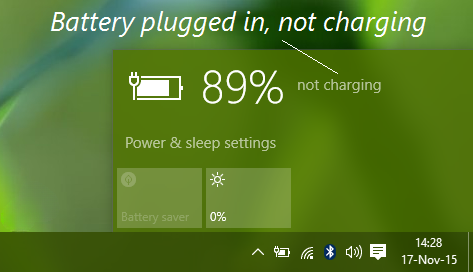
من الضروري جداً تحديد المكون الأساسي المتسبب في فشل عملية الشحن. فقد يبدو الحاسوب المحمول (Laptop) وكأنه يعمل بشكل مثالي، ثم فجأة ينطفئ تماماً أو يتوقف عن إظهار أي مؤشر يدل على استقباله للطاقة عند توصيله بالقابس.
التشخيص الأولي: عند مواجهة هذه المشكلة، يجب فحص كل من الحاسوب المحمول ومحول الطاقة (الشاحن) بواسطة فني متخصص. وعادةً ما ينبع هذا الخلل من أحد ثلاثة مصادر:
محول الطاقة (الشاحن): قد يكون الشاحن نفسه تالفاً أو به خلل.
البطارية: قد تكون البطارية قد وصلت إلى نهاية عمرها الافتراضي أو تعرضت للتلف.
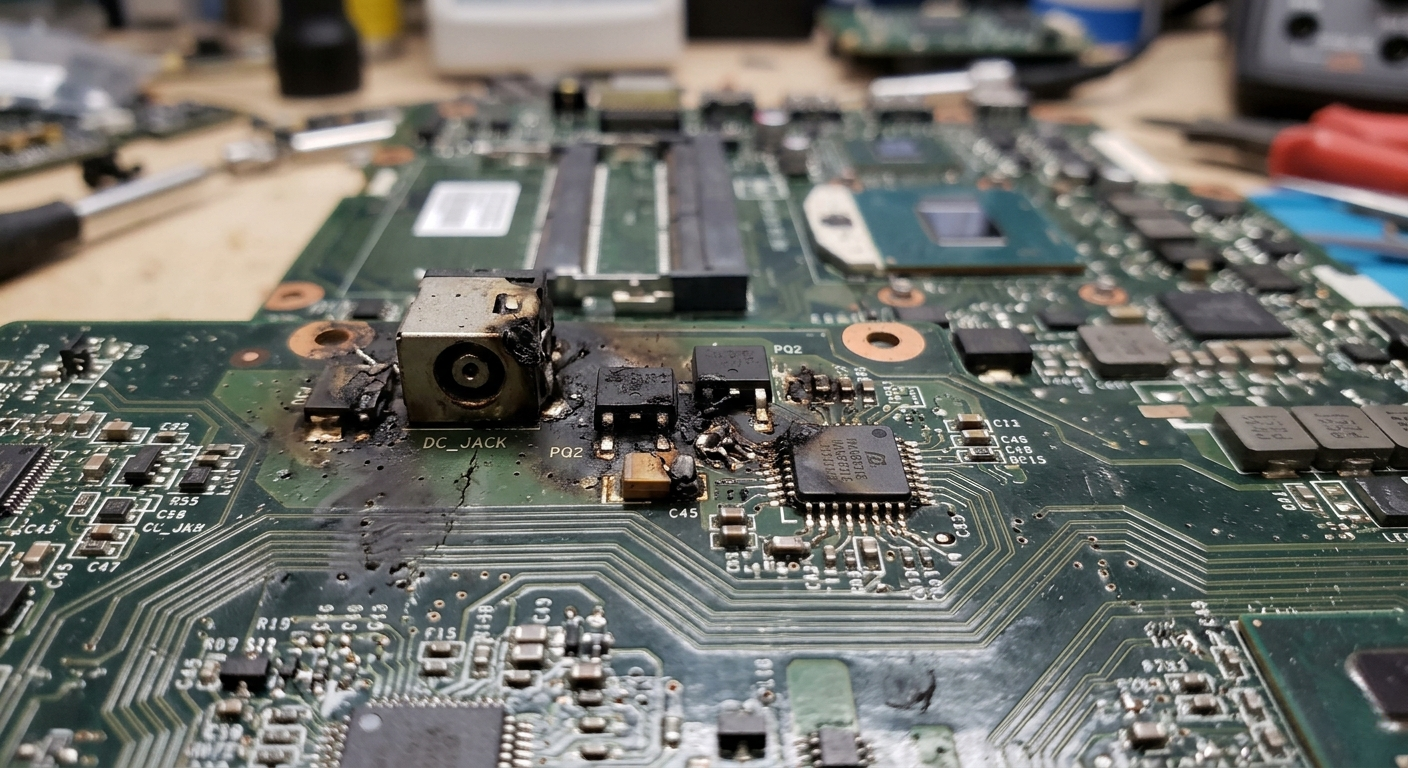
رقاقة تنظيم الشحن (Charging IC): إذا كان الشاحن والبطارية سليمين، فإن المشكلة تكمن غالباً في تلف رقاقة الـ IC المخصصة للشحن على اللوحة الأم (Motherboard).
آلية الإصلاح: في حالة تلف رقاقة الـ IC، يتطلب الأمر تفكيك الحاسوب المحمول بالكامل لإصلاح أو استبدال المكون التالف على اللوحة الأم (Logic Board). وبمجرد إصلاحها، سيعود الجهاز إلى العمل والظروف التشغيلية الطبيعية..
تذكير هام: احرص دائماً على أخذ جهازك إلى فني معتمد لإجراء إصلاحات الأجهزة (Hardware) أو البرمجيات (Software) لضمان السلامة والجودة.
خطوات استكشاف أخطاء الشحن وإصلاحها
(قبل التوجه لمركز صيانة معتمد)
إذا كان حاسوبك المحمول من نوع Dell يظهر حالة "تم التوصيل، لا يتم الشحن" (Plugged in, not charging)، اتبع الخطوات التالية بالترتيب:
إجراء إعادة تعيين كاملة للطاقة (Hard Reset):
افصل شاحن الكهرباء وقم بإزالة البطارية (إذا كانت قابلة للإزالة).
اضغط مع الاستمرار على زر الطاقة (Power Button) لمدة 30 ثانية لتفريغ أي شحنات كهربائية ساكنة متبقية داخل الجهاز.
أعد توصيل الشاحن فقط (بدون البطارية) وحاول تشغيل الجهاز.
تحديث تعريفات البطارية (Update Battery Drivers):
انقر بزر الفأرة الأيمن على قائمة "ابدأ" (Start) وافتح إدارة الأجهزة (Device Manager).
قم بتوسيع قسم البطاريات (Batteries)..
انقر بزر الفأرة الأيمن على Microsoft ACPI-Compliant Control Method Battery واختَر إلغاء تثبيت الجهاز (Uninstall device).
أعد تشغيل الحاسوب المحمول؛ وسيقوم نظام ويندوز تلقائياً بإعادة تثبيت التعريف عند الإقلاع.
التحقق من حالة الشاحن في نظام الـ BIOS:
أعد تشغيل الحاسوب المحمول واضغط بشكل متكرر وسريع على مفتاح F2 للدخول إلى إعدادات الـ BIOS..
ابحث عن قسم معلومات البطارية (Battery Information) أو نوع محول الطاقة (AC Adapter Type).
إذا ظهرت لك عبارة "Unknown AC Adapter" (محول مجهول)، فهذا يعني أن اللابتوب يفشل في التعرف على الشاحن، وهو ما يشير عادةً إلى تلف في الشاحن نفسه أو تضرر منفذ الشحن (DC Jack).
الفحص الفيزيائي (الظاهري) لمنفذ الشحن:
افحص منفذ الشحن (DC Jack) في اللابتوب للتأكد من خلوه من الغبار، الأتربة، أو الأجزاء المرتخية.
افحص الدبوس المركزي (Center Pin) الموجود داخل موصل الشاحن نفسه؛ فإذا كان هذا الدبوس منحنياً أو مفقوداً، فلن يتم شحن البطارية أبداً.
نصيحة تقنية: إذا اتبعت جميع هذه الخطوات وظلت رسالة "تم التوصيل، لا يتم الشحن" تظهر لك، فإن المشكلة غالباً متعلقة بالقطع الداخلية (إما بطارية تالفة أو رقاقة شحن IC متضررة). في هذه الحالة، يجب عليك أخذ الجهاز إلى فني محترف لإصلاحه..
هل ما زلت تواجه مشكلة في حاسوب Dell الخاص بك؟
تتطلب بعض مشكلات الطاقة أدوات هندسية متخصصة لإصلاحها. تفضل بزيارة هيكس تكنولوجي في البحرين للحصول على فحص وتشخيص احترافي، شواحن أصلية، وإصلاحات دقيقة للوحة الأم على أيدي خبراء. سنعيد جهازك Dell إلى قوته الكاملة!