
Have you ever created a masterpiece on your personal Canva account and needed to move it to a client's team or your corporate workspace? Instead of starting over or dealing with complex sharing links, Canva offers a powerful built-in feature: "Copy to another team."
In this guide, we’ll show you exactly how to do it using visual steps.
Prerequisites: For this method to work, you must be a member of both teams (the source and the destination) using the same email address.
Steps to Transfer Designs
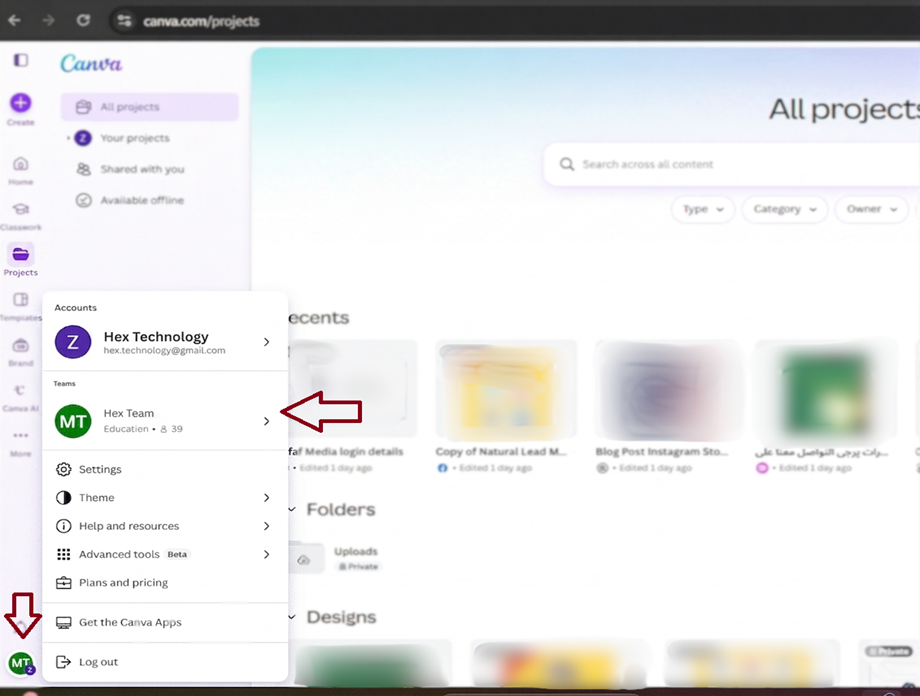
Step 1: Check Your Current Team
First, ensure you are logged into the team that holds the original design. You can switch teams by clicking your profile icon in the top corner.
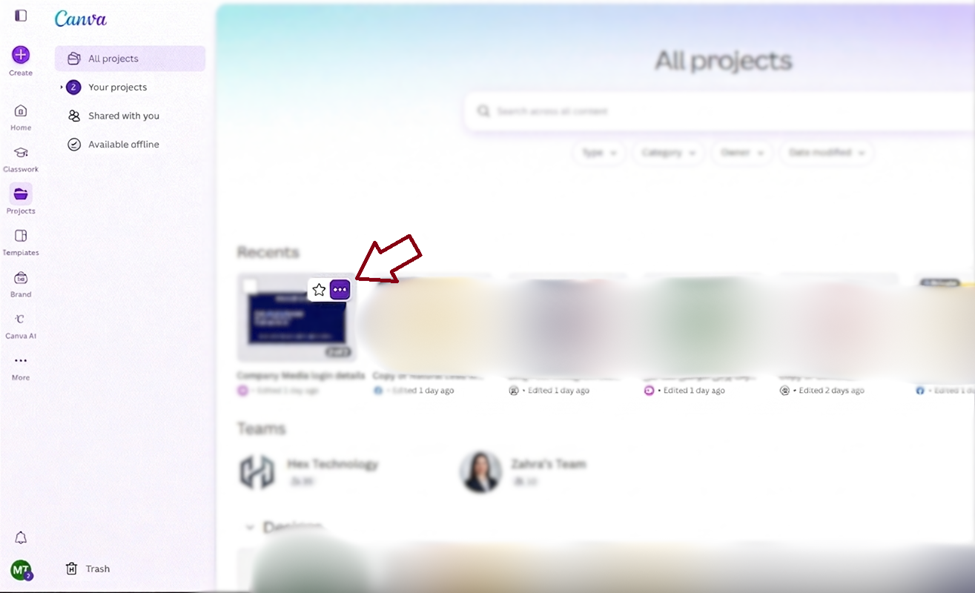
Step 2: Navigate to Projects
From the side menu, click on "Projects." Locate the design or folder you wish to transfer, then click on the three dots (...) that appear on the design thumbnail.
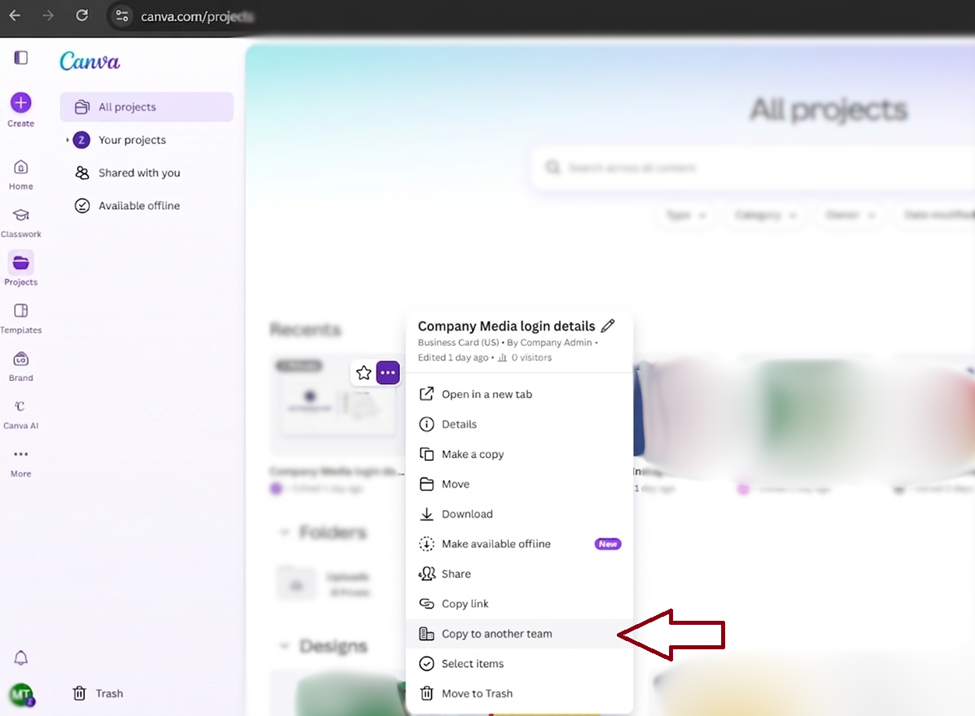
Step 3: Select "Copy to another team"
A dropdown menu will appear. Look for the option "Copy to another team." This is the magic button that duplicates your file directly to another workspace.
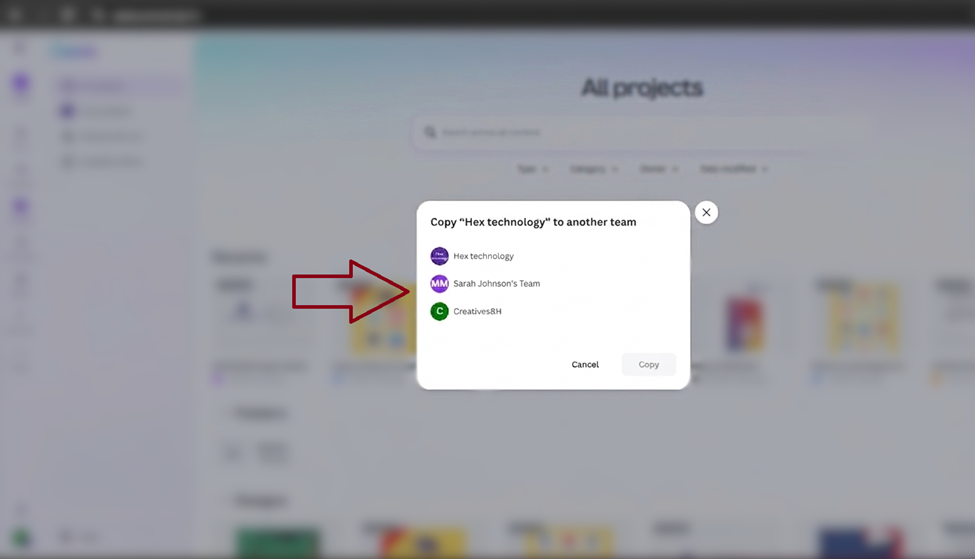
Step 4: Select the Destination Team
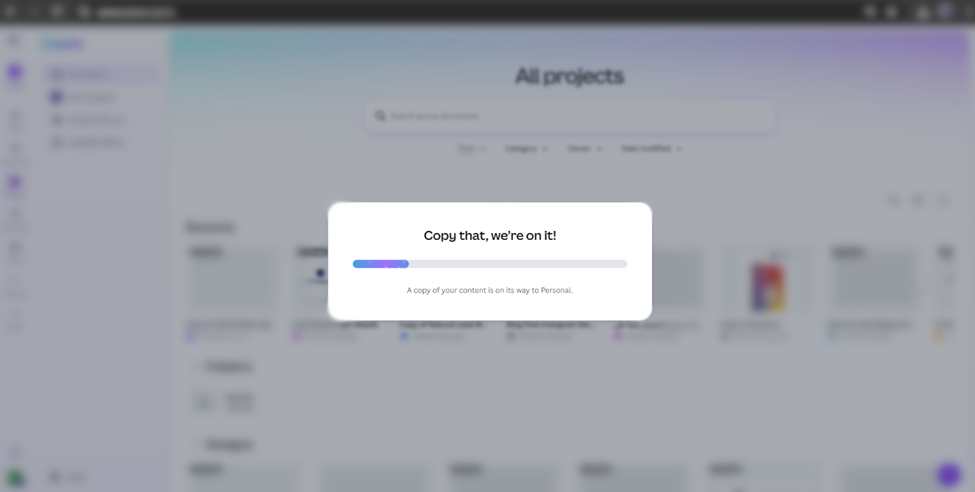
A pop-up window will list all the teams you belong to. Choose the "New Team" where you want the design to go, and click the "Copy" button.
Step 5: Verify the Transfer
Switch to your new team. You will find a fresh copy of the design waiting in the Projects tab, along with a confirmation message.
Pro Tip:
What about uploads?
When using the "Copy" feature, all images and videos you uploaded within that design will automatically move with it. No need to re-upload your assets!
We hope this guide helped streamline your workflow on Canva. Moving designs between teams is now easier than ever!
💡 Ready to unlock the full power of Canva Pro?
Whether you want to get a new account or renew your current subscription, we’ve got you covered.
Contact us today to get started with the best rates!