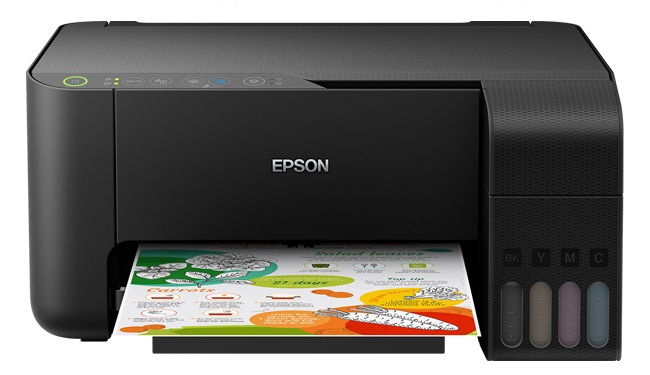
The Epson L3150 EcoTank is an excellent, cost-effective printer. However, like all inkjet models, the primary challenge is preventing the print head from clogging when the printer is not used regularly. This guide explains how to maintain your L3150 and keep your prints crisp and clear.
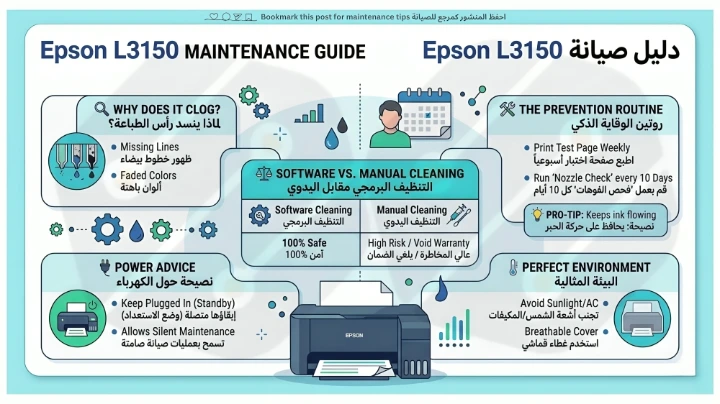
🔍 Why Does the Print Head Clog?
The L3150 uses fixed print heads with microscopic nozzles. If the printer sits idle, ink dries inside these nozzles, leading to:
- Missing lines or horizontal banding in text.
- Faded colors or specific colors missing entirely.
- White streaks across high-quality images.
🛠️ The Prevention Routine
The most effective protection is regular use. Follow this simple schedule:
|
Usage Frequency |
Action Required |
|
Daily or Almost Daily |
No special maintenance needed. Just monitor ink levels. |
|
Light Use (Weekly) |
Print a small color test page or a "Nozzle Check" every 7–10 days. |
|
Long Breaks (2+ Weeks) |
Run a "Nozzle Check" before printing your main documents. |
💡 Pro-Tip: Running a "Nozzle Check" pattern uses a negligible amount of ink but is highly effective at keeping the liquid moving through the nozzles.
⚖️ Software Cleaning vs. Manual Cleaning
Knowing the difference can save your printer from permanent damage.
1. Software (Electrical) Cleaning:
- How it works: Accessed via the printer driver (Maintenance tab). It forces ink through the head to clear blockages.
- Safety: 100% safe and officially supported.
- Caution: It consumes a noticeable amount of ink. Avoid running more than 3 cycles in one day.
2. Manual (Physical) Cleaning:
- How it works: Physically accessing the head with cleaning fluids and syringes.
- Risks: High. You risk scratching the head or causing an electrical short with excess liquid.
- Verdict: Use only as a last resort if the printer is out of warranty and software cleaning has failed.
🔌 Should You Keep the Printer Plugged In?
Yes, it is recommended.
Modern Epson printers benefit from staying in standby mode.
- Auto-Maintenance: Some models perform light maintenance routines when left on.
- Ink Saving: If you unplug the printer, it often runs a "Heavy Startup Cleaning" when reconnected, which wastes more ink than leaving it in standby.
🌡️ The Best Environment for Your Printer
- Avoid: Direct sunlight, heat sources, and very dusty areas.
- Ideal: Moderate room temperature with 40-60% humidity.
- Dust Cover: Using a breathable cover when not in use prevents dust from settling on the internal rollers and heads.
Frequently asked questions
Only when you see print quality issues (banding or missing colors). Routine cleaning without issues is a waste of ink.
Turn the printer off and wait 12–24 hours. This "soaking time" allows the dried ink to soften, often fixing the issue on the next try.
No, modern printers use very little power (less than 1W) in standby mode. The benefit of keeping the print head moist far outweighs the negligible electricity cost.
Do not empty the ink tanks. Perform one software cleaning cycle, then turn the printer off via the Power Button (to ensure the head is parked and sealed), and cover it with a breathable dust cover.
If 3 software cleaning cycles followed by a 24-hour wait fail to improve print quality, you likely have a severe clog or air in the lines that requires professional service.
Software cleaning is 100% safe, but overdoing it (more than 3 consecutive times) can stress the mechanism and waste a significant amount of ink without achieving better results.