
Skip to Content
  • الْعَرَبيّة English (US)
Data Recovery - Hex Tech
  • 0
    My Cart
  • Sign in
  • Home
  • Our Shop
  • Our Services
    • Services
    • Remote IT Support
    • Software -  Hardware Repair
    • Unlock Phone
  • Donor Drives
  • Submit your case!
  • Our Blog
  • About Us!
    • About Us
  • Help
    • Submit a Ticket
Data Recovery - Hex Tech
  • 0
    • Home
    • Our Shop
    • Our Services
      • Services
      • Remote IT Support
      • Software -  Hardware Repair
      • Unlock Phone
    • Donor Drives
    • Submit your case!
    • Our Blog
    • About Us!
      • About Us
    • Help
      • Submit a Ticket
  • الْعَرَبيّة English (US)
  • Sign in

Comprehensive Guide to Laptop Battery Health and Optimization

Any types of Laptop, Gaming Laptop and MacBook that need to replace a battery.
  • All Blogs
  • Repair
  • Comprehensive Guide to Laptop Battery Health and Optimization
  • September 2, 2024 by
    Comprehensive Guide to Laptop Battery Health and Optimization
    Hex Technology


    Why Does Your Laptop Battery Drain So Fast?

    Regardless of your device type—be it a Standard Laptop, Gaming Laptop, or MacBook—battery drain is often caused by invisible background processes. Constant updates, cloud syncing, and background data usage significantly impact overall battery longevity.
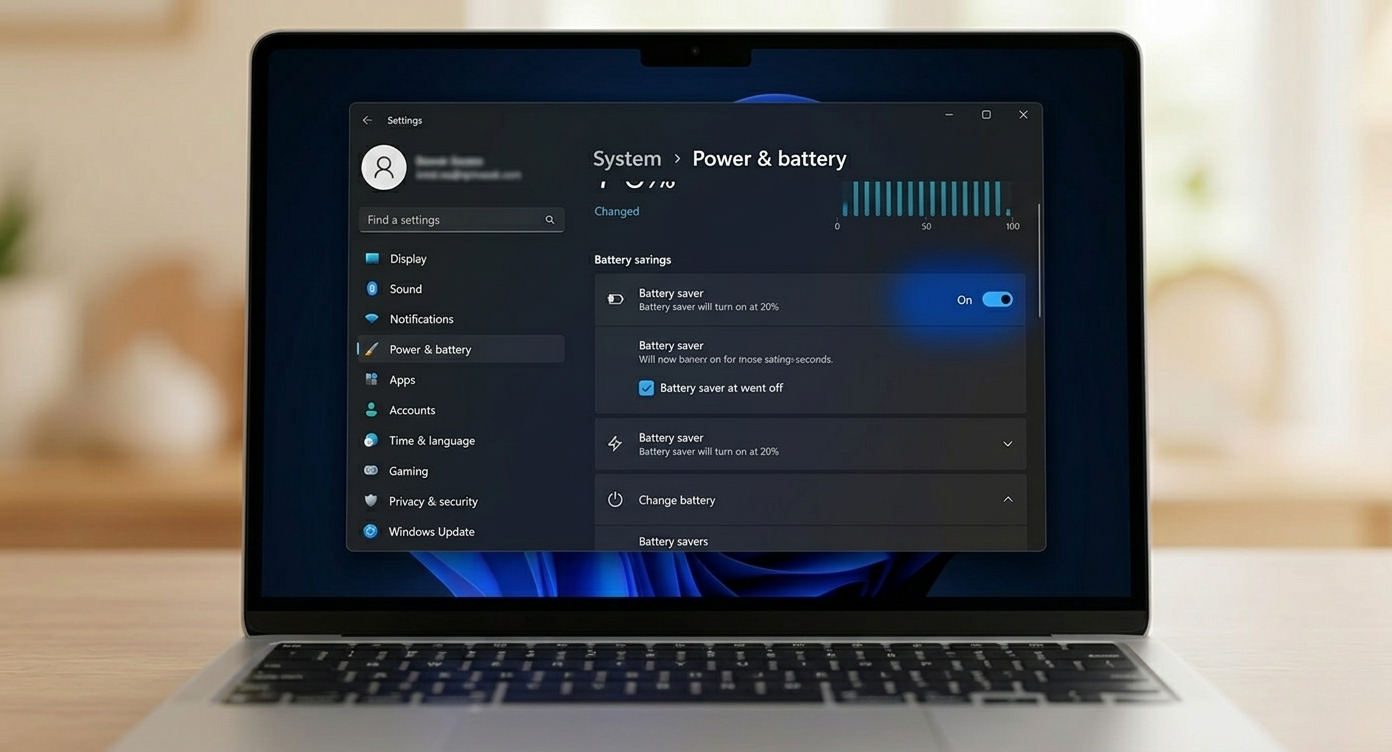
    Optimizing battery saver settings on a modern laptop

    5 Factors That Degrade Your Battery Life:

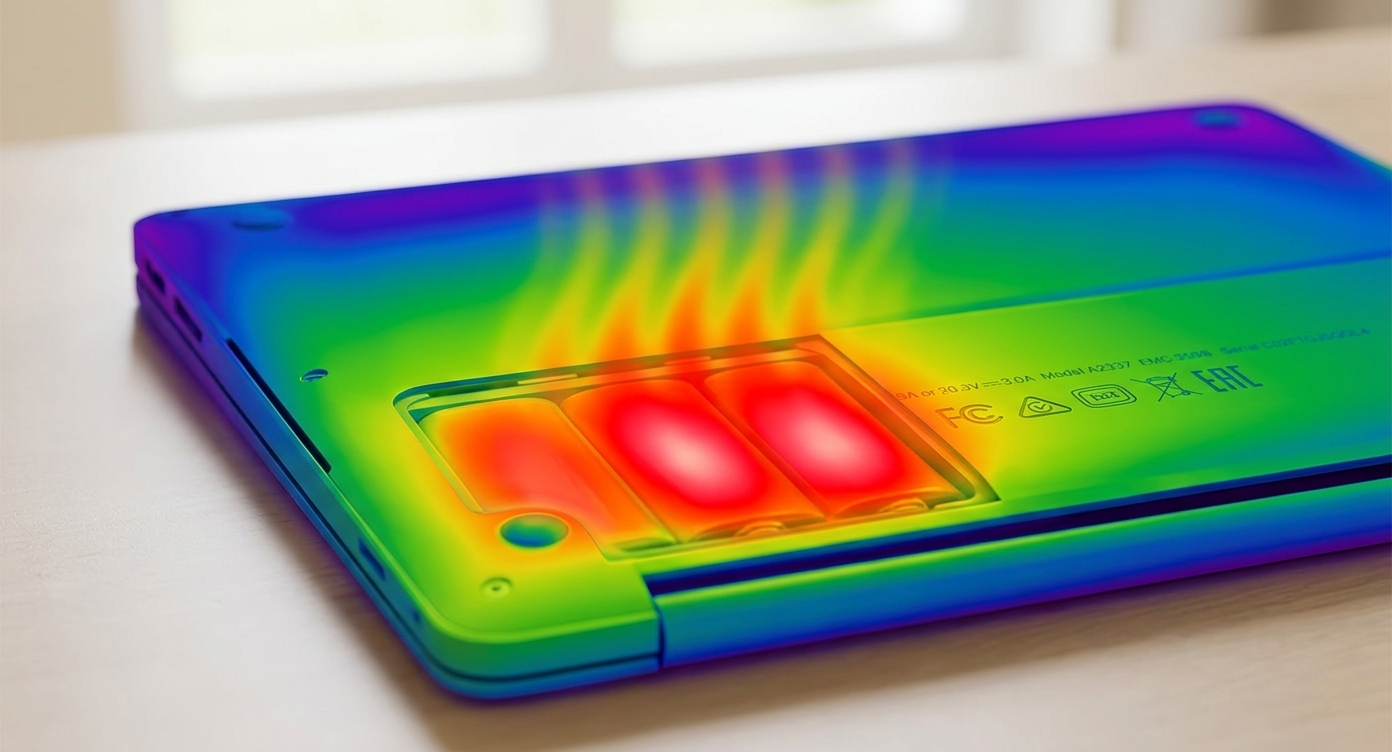
    1. Heat Damage: Heat degrades lithium-ion chemistry rapidly. Charging for prolonged periods in a hot environment is harmful.

    2. Deep Discharge: Using your laptop until the battery is almost dead (0%) stresses the cells.

    3. Overcharging in High Heat: Keeping the laptop plugged in while it is already hot can lead to faster degradation.

    4. Power-Hungry Apps: Certain applications run heavy processes in the background without your knowledge.

    5. Extreme Temperatures: Exposure to extreme cold or heat significantly affects chemical stability.

    Expert Tips to Extend Battery Life:


    • Enable Power Saver Mode: Adjust your settings to "Energy Efficient" mode when unplugged.

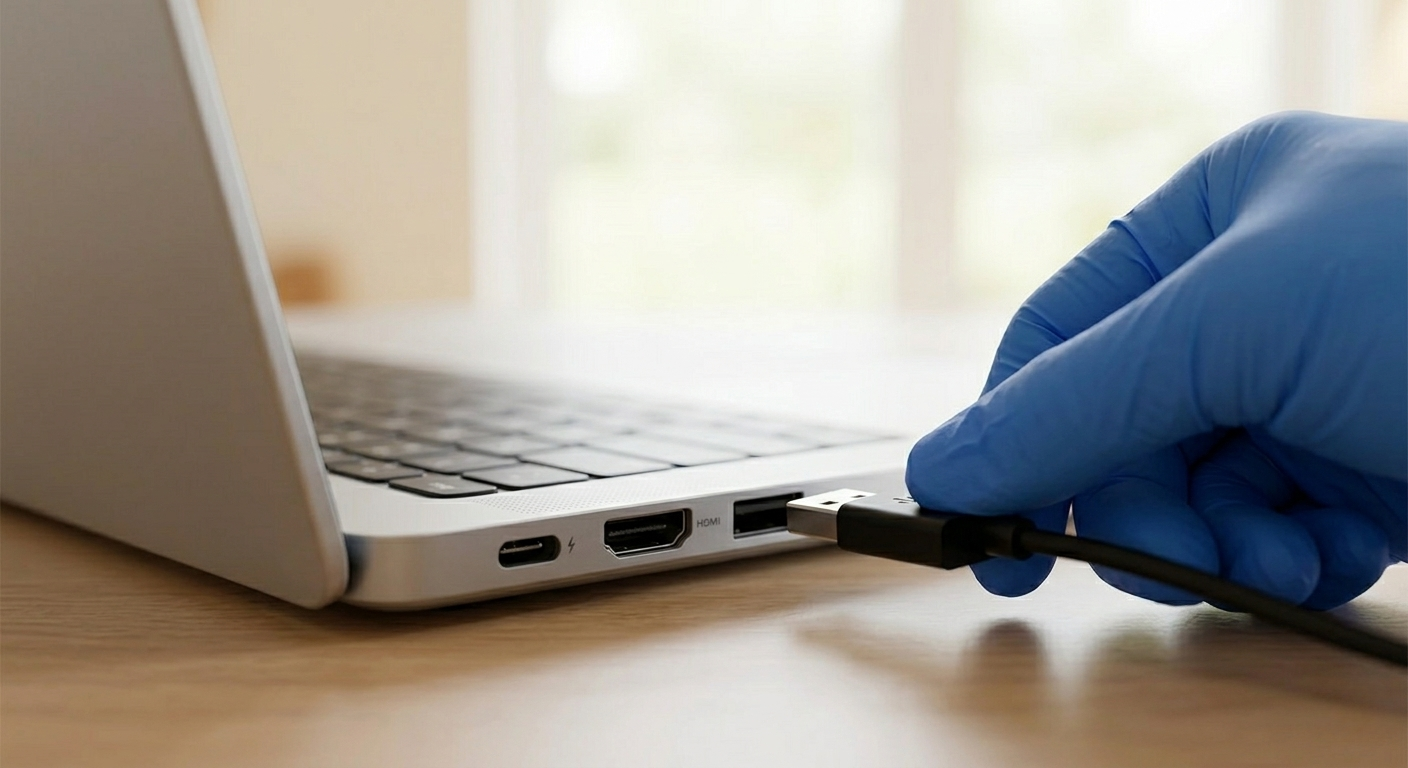
    • Disconnect Unused Peripherals: Remove USB drives or accessories when not in use.

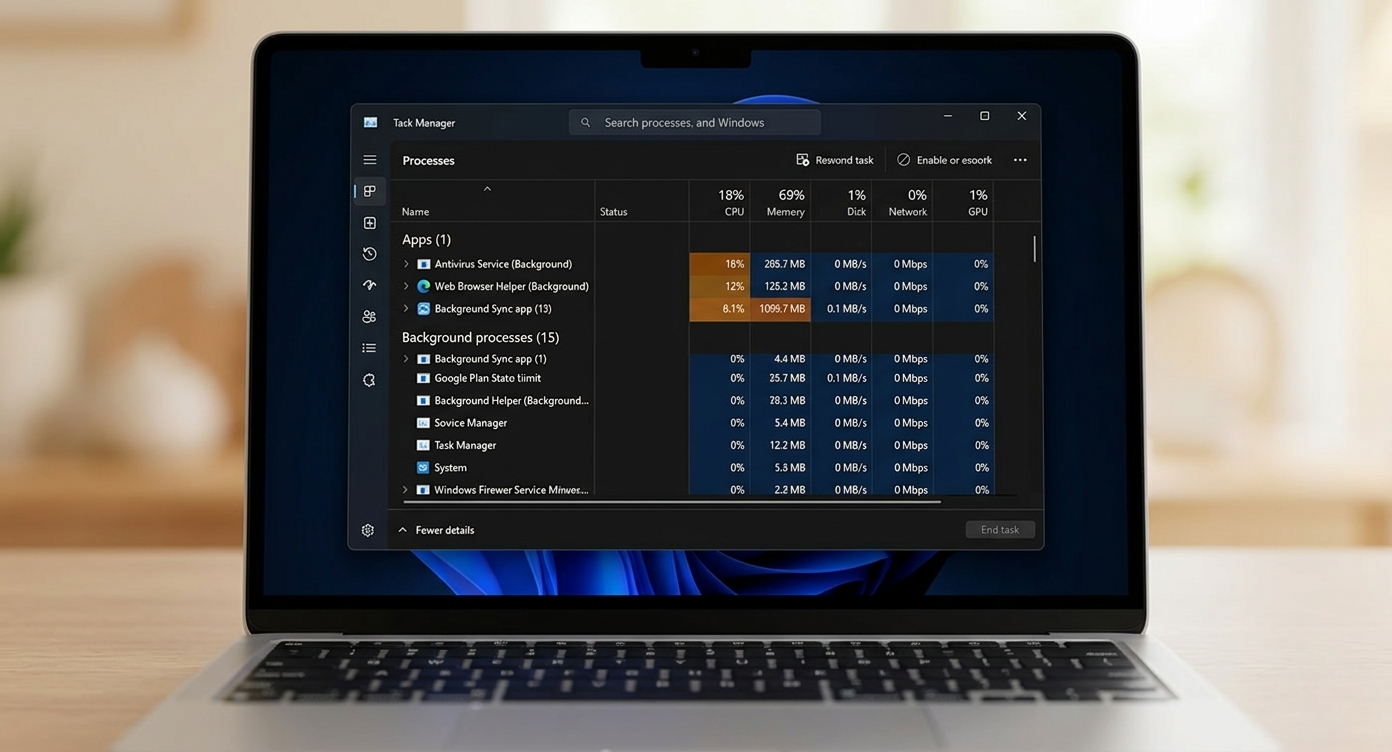
    • Manage Background Tasks: Use the Task Manager (or Activity Monitor on Mac) to kill unnecessary processes and programs.
    Difference between healthy and degraded laptop battery life


    Is Your Battery Not Holding a Charge Anymore? 
    Even with the best optimization, all laptop batteries eventually reach the end of their life. If you’ve followed this guide and your battery still dies quickly, it’s time for a professional checkup. Visit Hex Technology in Bahrain for a comprehensive battery health diagnostic and genuine replacement parts. Our technical support team is ready to assist you if you face any issues during the installation or calibration process!

    Contact Us!


    in Repair
    Comprehensive Guide to Laptop Battery Health and Optimization
    Hex Technology September 2, 2024
    Our blogs
    • ​Software
    • Support
    • Tips and Tricks
    • Repair
    • Data Recovery
    • News
    MacBook Air Cracked Screen Repair
    – Professional Solutions -
    Copyright © 2026 Hex Technology
    الْعَرَبيّة | English (US)
    Powered by Odoo - Hex Technology Data Recovery Bahrain