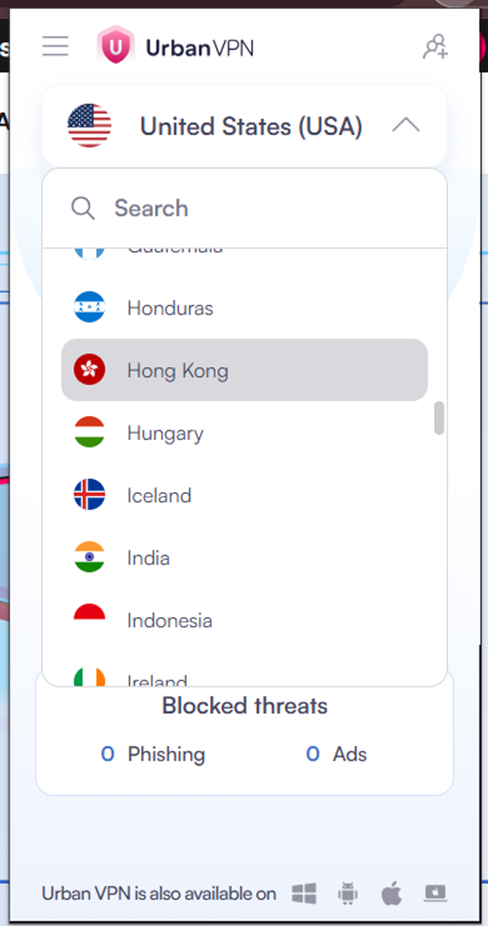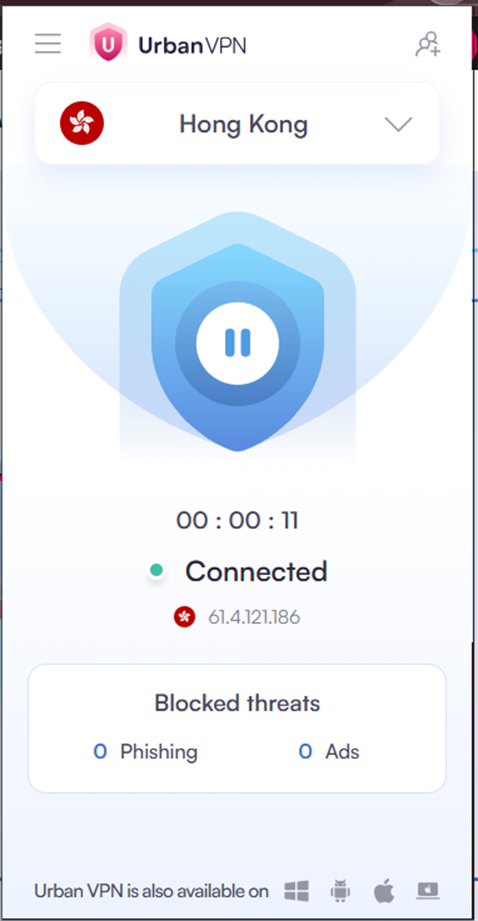
Here are the step-by-step instructions to create a new Chrome profile and install the Urban VPN Proxy extension:
Step 1: Create a New Chrome Profile
- Open your Google Chrome browser.
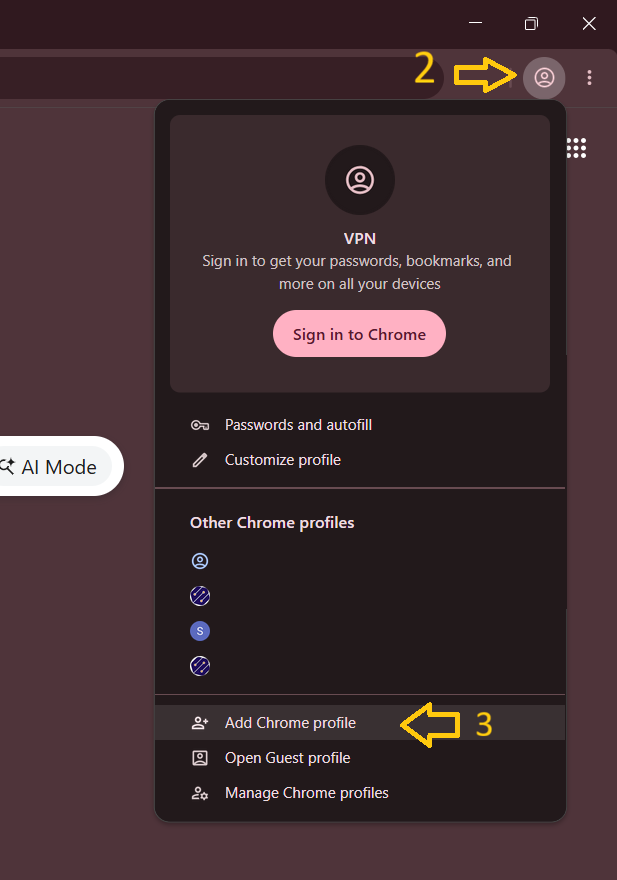
- Click on your Profile icon (the circular image) in the top-right corner of the window (next to the three vertical dots).
- Scroll down to the bottom of the menu and click Add.
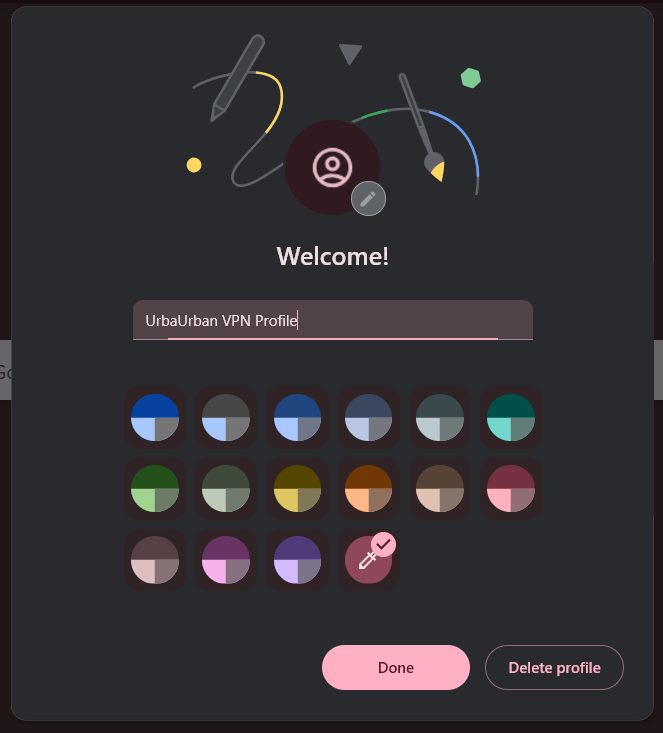
- A new window will pop up. Click Continue without an account for a quick setup (or sign in with a different Gmail if you prefer).
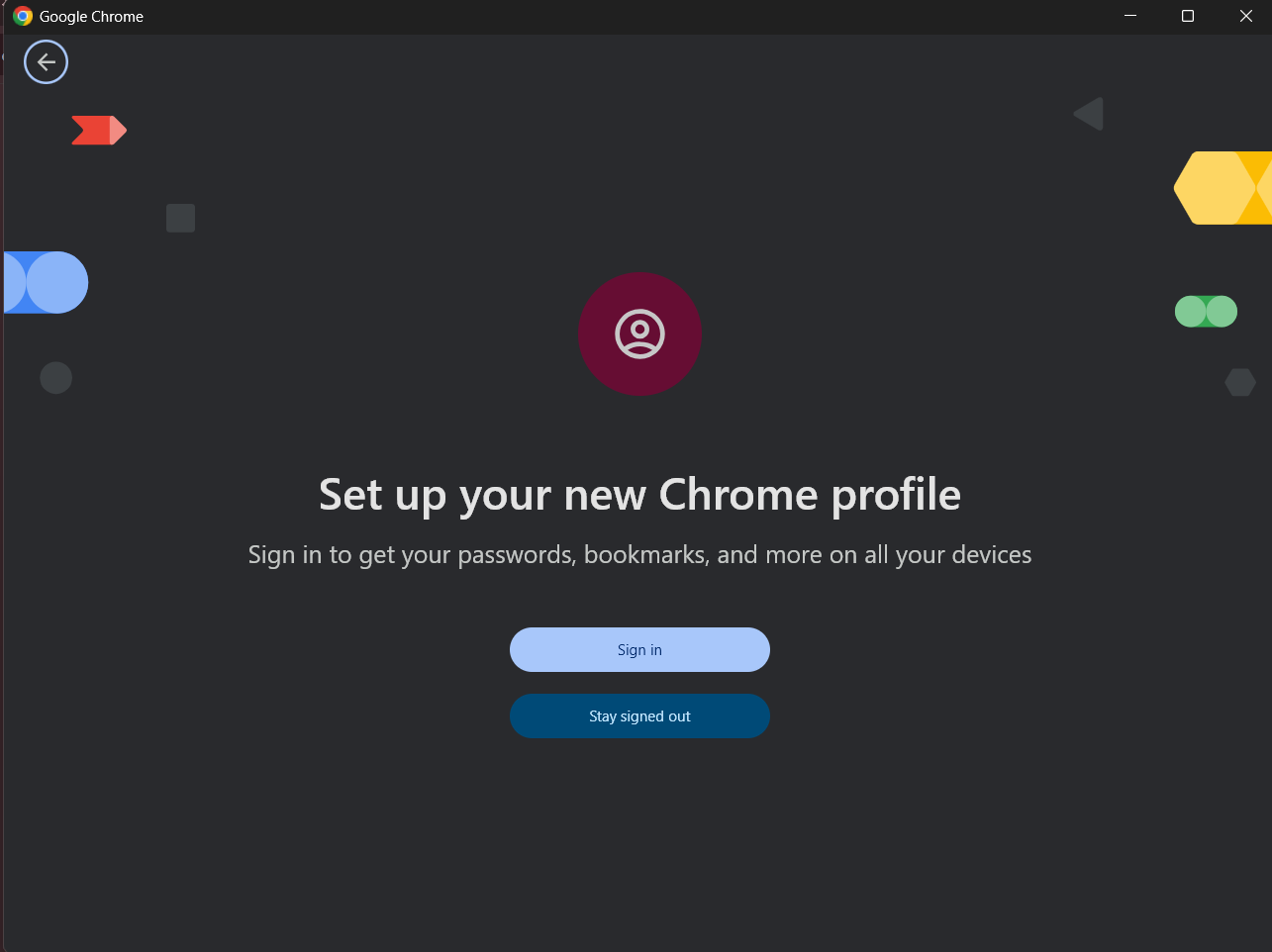
- Name your new profile (e.g., Urban VPN Profile), choose a theme color, and click Done.
Step 2: Install the Urban VPN Extension
- Inside the new browser window that just
opened (your new profile), go to the search bar on the top-left, type:
Urban VPN Proxy.
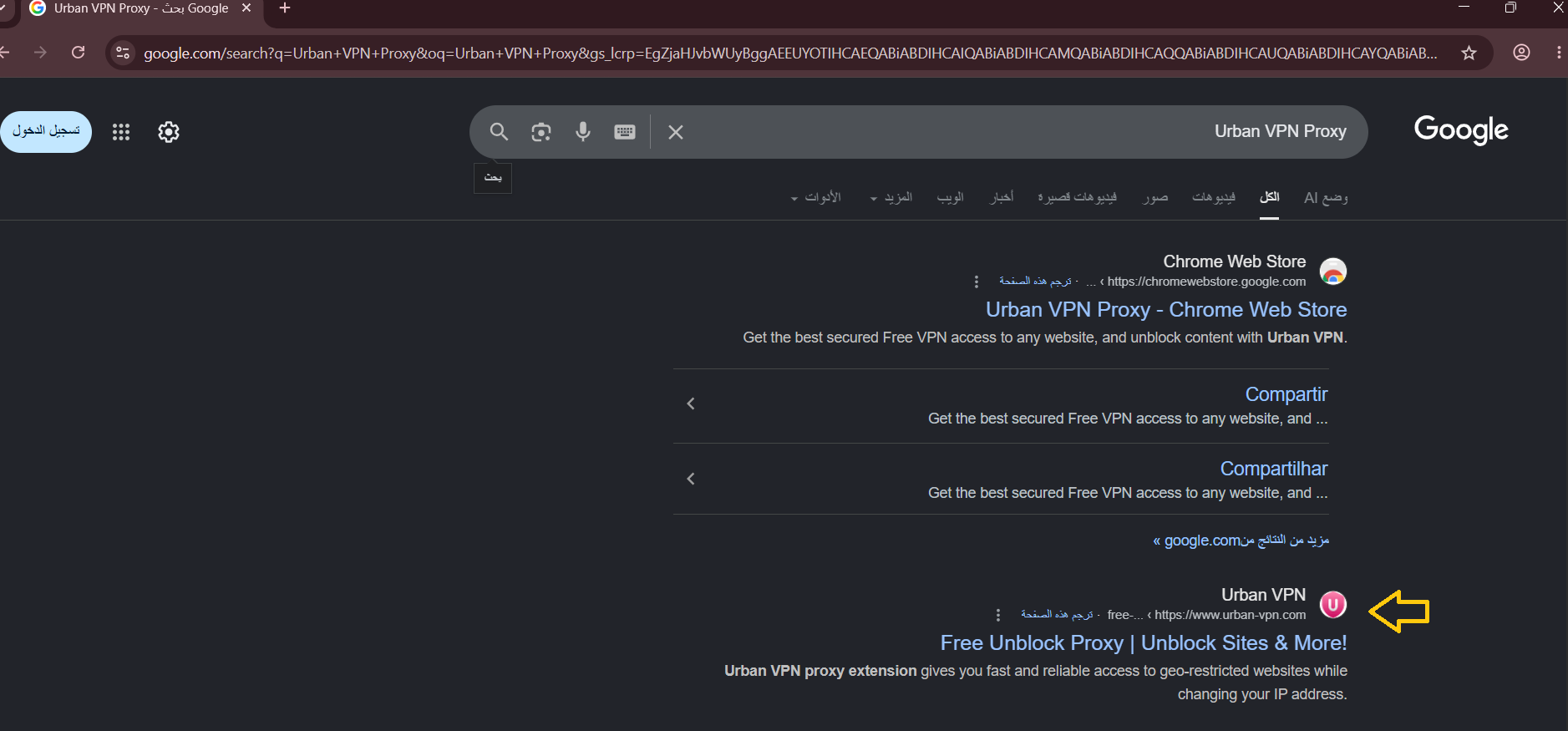
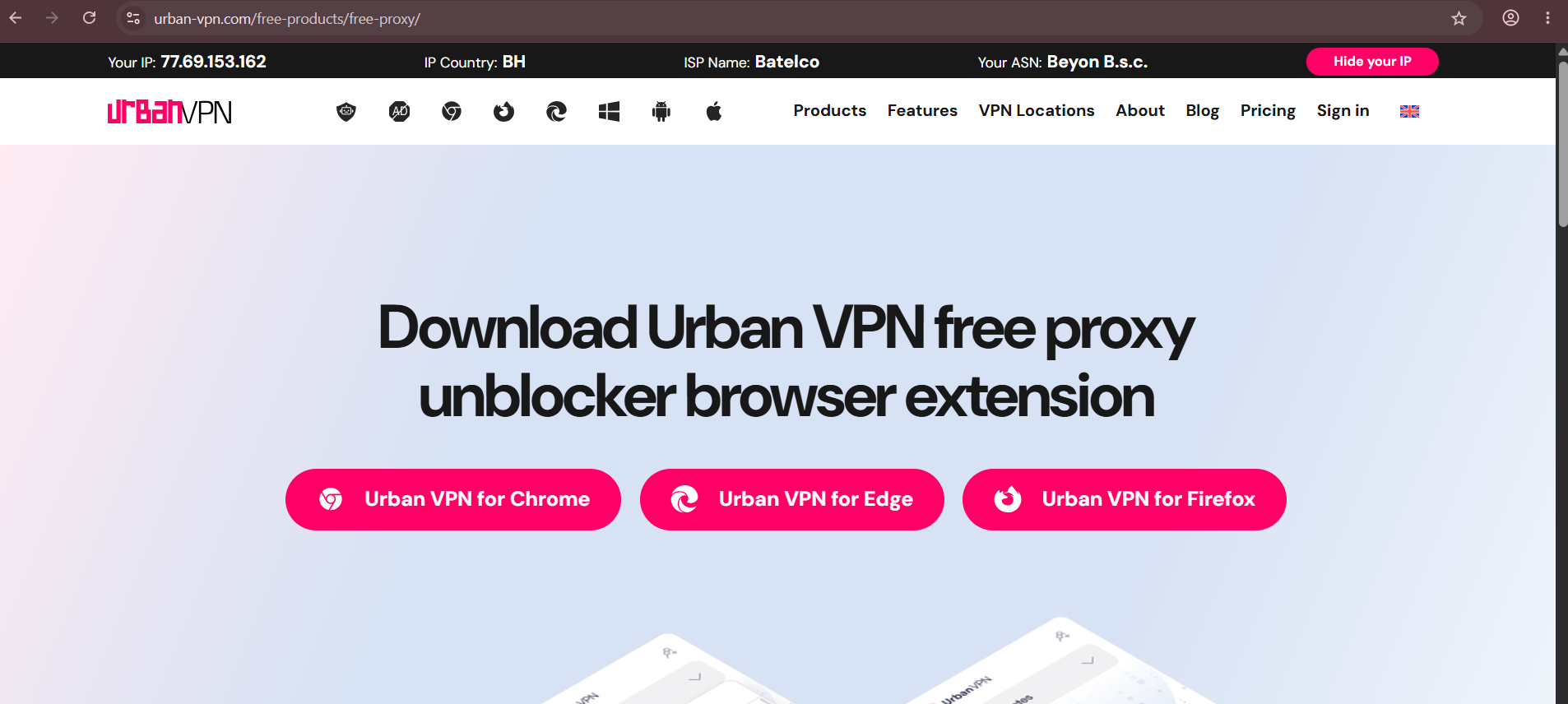
- Select the official extension from the results, then click Add to Chrome.
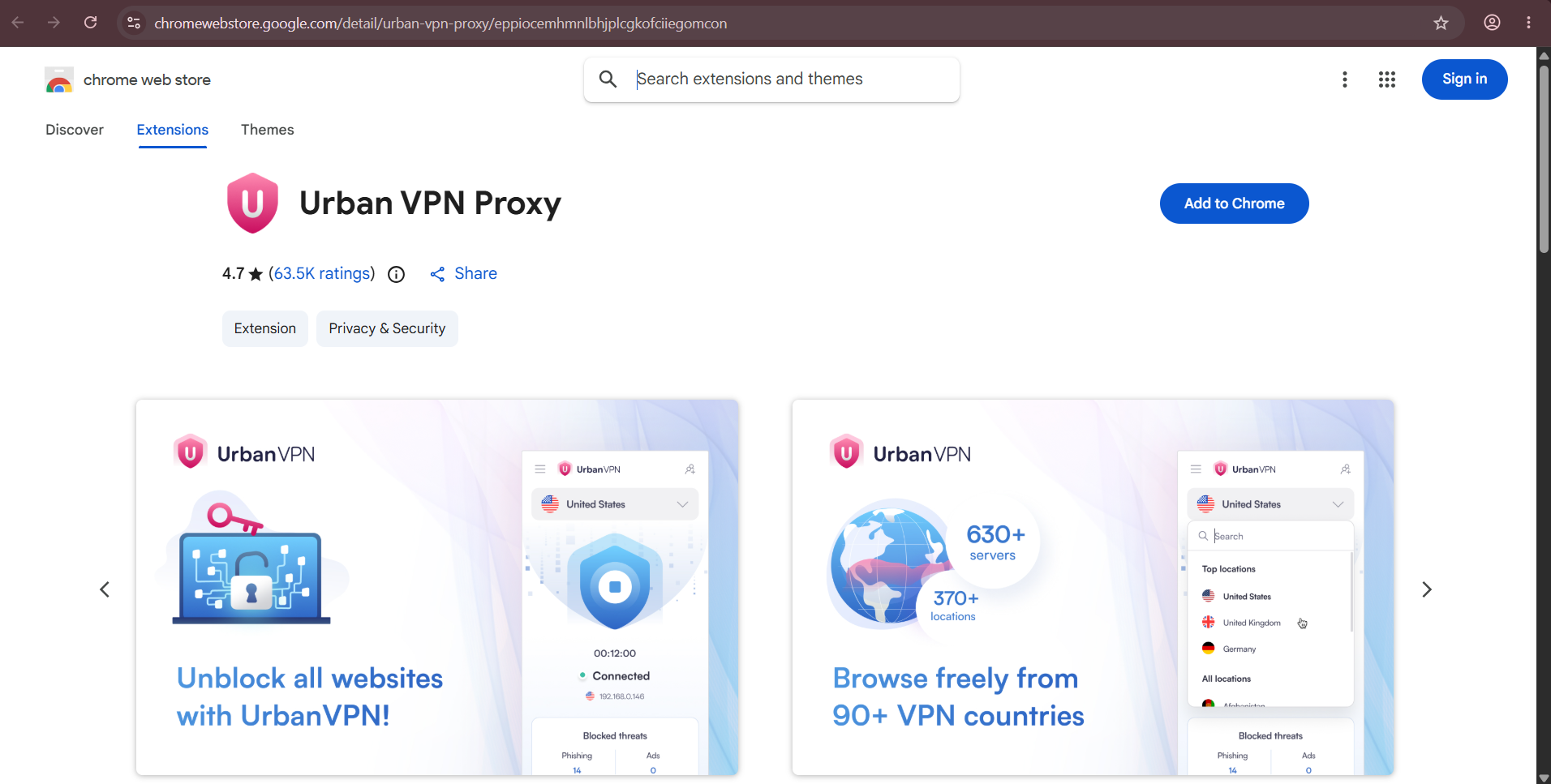
- A confirmation prompt will appear; click Add extension.
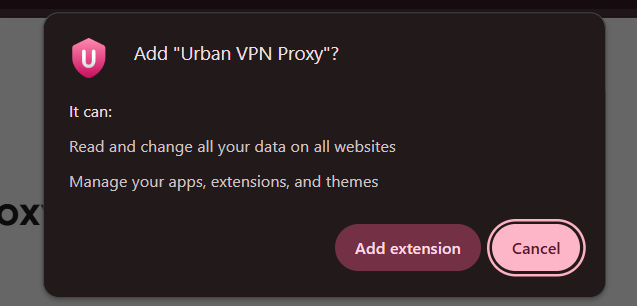
Step 3: Activate and Run the VPN
- Once installed, click on the Extensions icon (which looks like a puzzle piece) in the top-right toolbar.

- Click the Pin icon next to Urban VPN to keep it visible on your main toolbar.
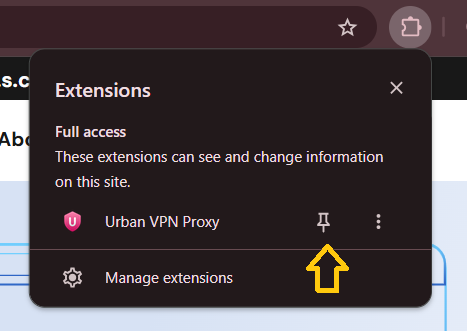
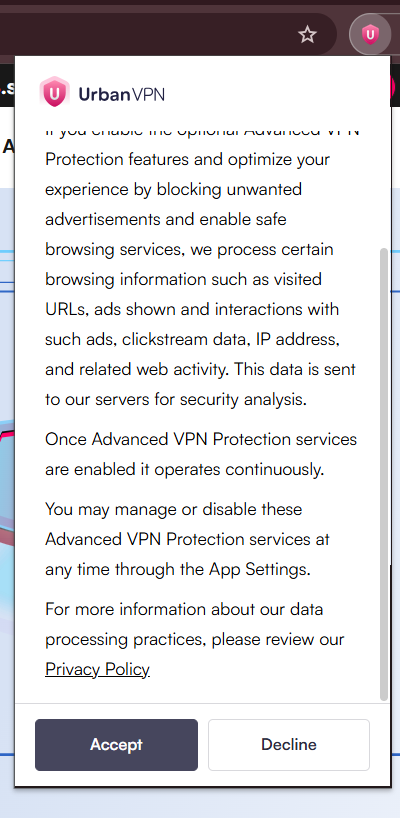
- Click the Urban VPN icon to open it.
- Accept the terms by clicking Agree & Continue or (Accept).
- Search for or select your desired location from the country list ((For example we will choose Hong Kong), and click the blue Play/Connect button.