
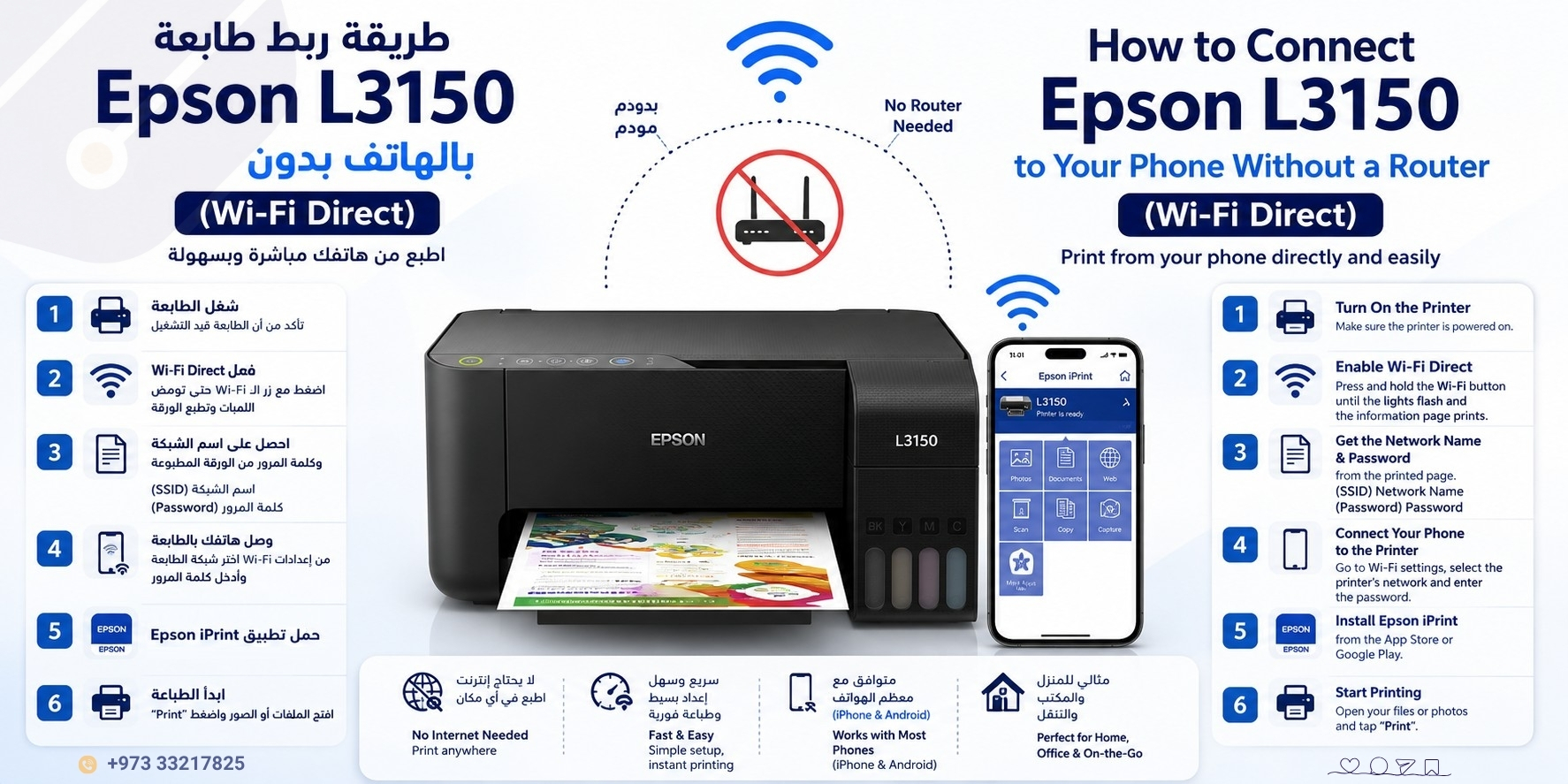
If you want to print photos or documents directly from your phone without using a router or modem, the Epson EcoTank L3150 supports Wi-Fi Direct, allowing your phone to connect directly to the printer.
This guide explains the setup step by step for both iPhone and Android devices.
What is Wi-Fi Direct?
Wi-Fi Direct allows the printer to create its own wireless network so your phone can connect directly to it without internet or a router.
This method is ideal for:
- Home use
- Small offices
- Quick printing
- Places without Wi-Fi routers
Steps to Connect Epson L3150 to Your Phone
(Without a Router)
1) Turn On the Printer
Make sure the printer is powered on and ready.
2) Enable Wi-Fi Direct
Press and hold the Wi-Fi button together with the adjacent network button until the Wi-Fi lights start flashing.
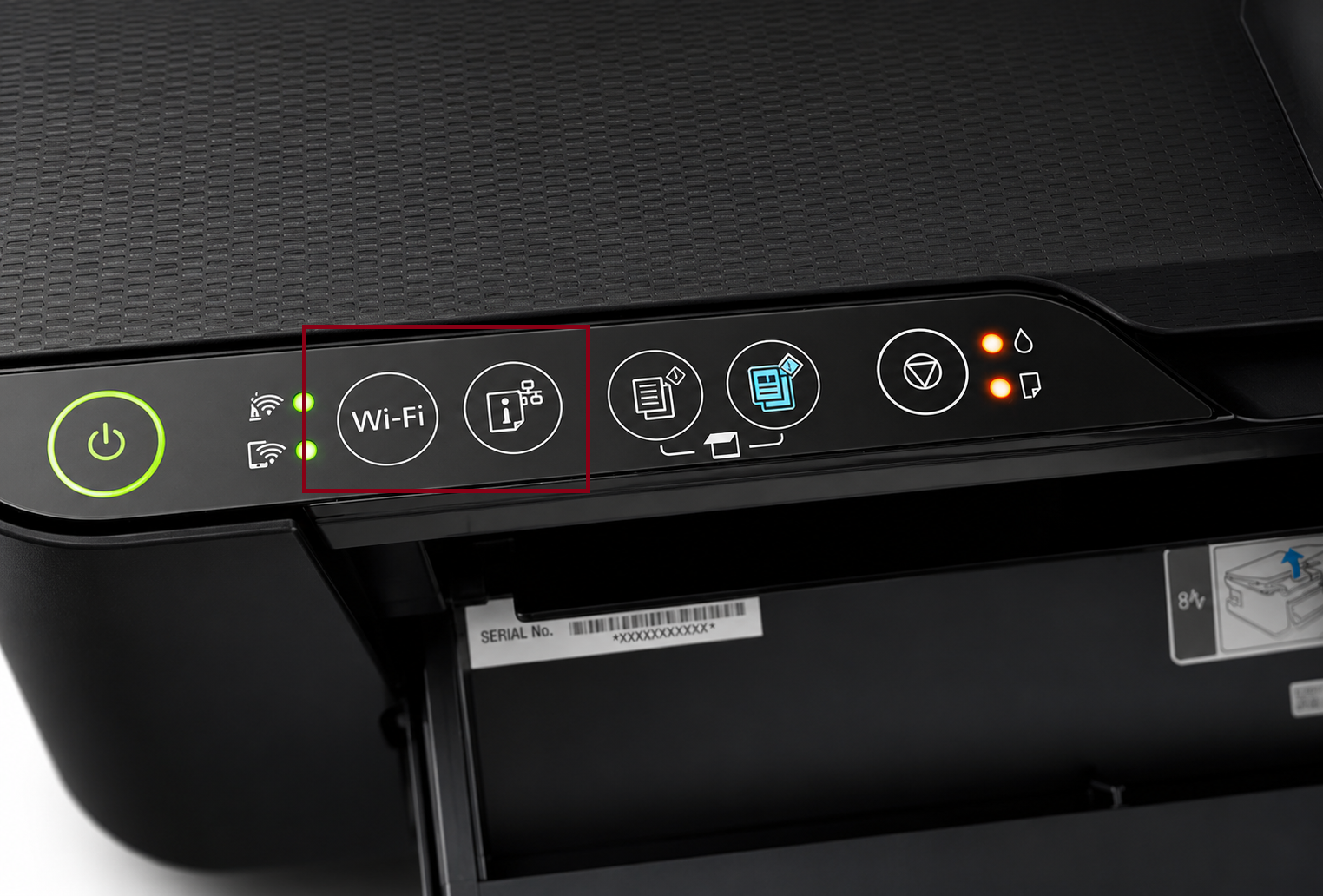
The printer will print a network information sheet.
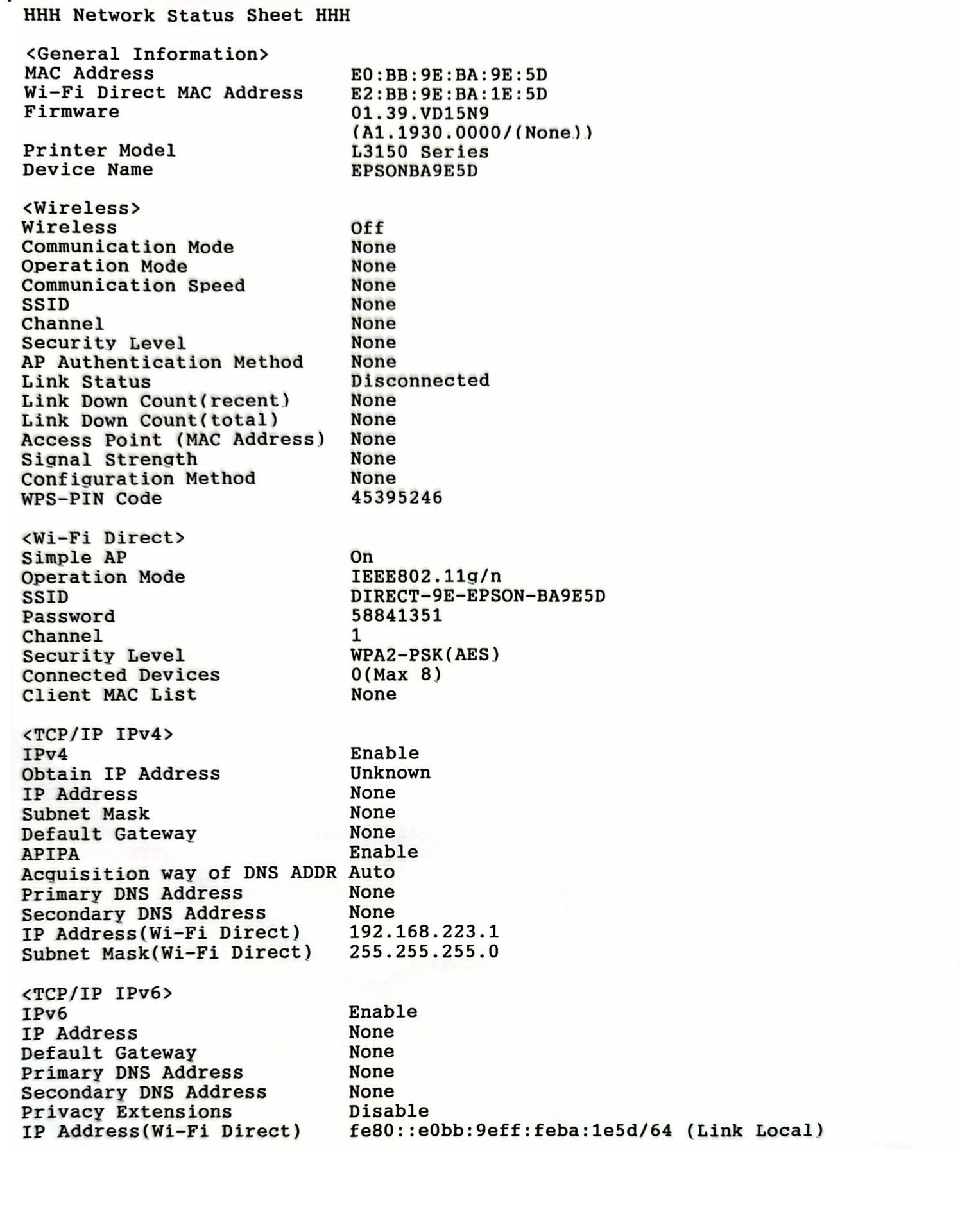
3) Find the Network Name & Password
On the printed sheet, look for the:
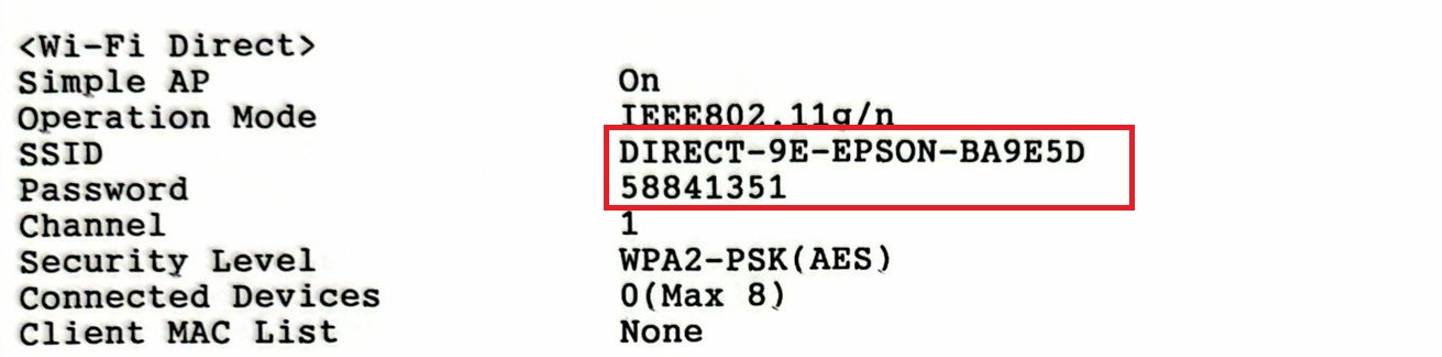
Wi-Fi Direct section
You will find:
- SSID (Network Name)
- Password
Example:
-
SSID:
DIRECT-9E-EPSON-BA9E5D -
Password:
58841351
4) Connect Your Phone to the Printer
On your phone:
- Open Wi-Fi Settings
- Search for the printer network
- Select the SSID shown on the printed sheet
- Enter the password
Your phone is now connected directly to the printer.
5) Install Epson iPrint
For iPhone: Epson iPrint for iPhone
For Android: Epson iPrint for Android
6) Start Printing
Open the app:
- Select your printer
- Choose photos or documents
- Tap Print
Your files will print instantly.
Important Notes
- While using Wi-Fi Direct, your phone may temporarily disconnect from the internet.
- If the printer does not appear inside the app, restart both the printer and your phone.
- Some phones require enabling “Local Network Access” for the app to detect the printer.
Wi-Fi Direct on the Epson L3150 is one of the easiest ways to print directly from your phone without needing a router or complicated setup, whether you use an iPhone or Android device.