
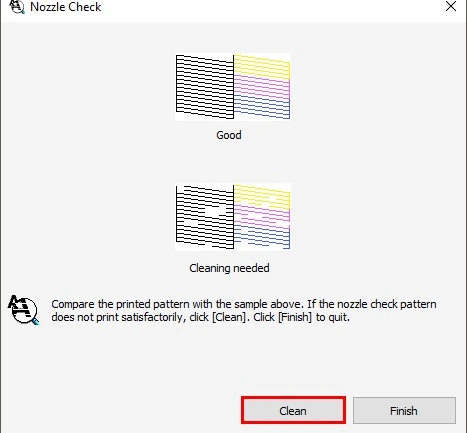
1. Nozzle Checks
A Nozzle Check helps identify clogged or faulty print heads.
The Goal: To print a test pattern that verifies nozzle functionality.
Reading the Result: If the pattern shows solid, continuous lines, the nozzles are clear. However, broken or missing lines indicate a blockage that needs cleaning.
How to Run it: Right-click the printer icon on your taskbar and select Nozzle Check, or go to the printer software's Maintenance tab. You may need to run this cycle up to 4 times for optimal results.
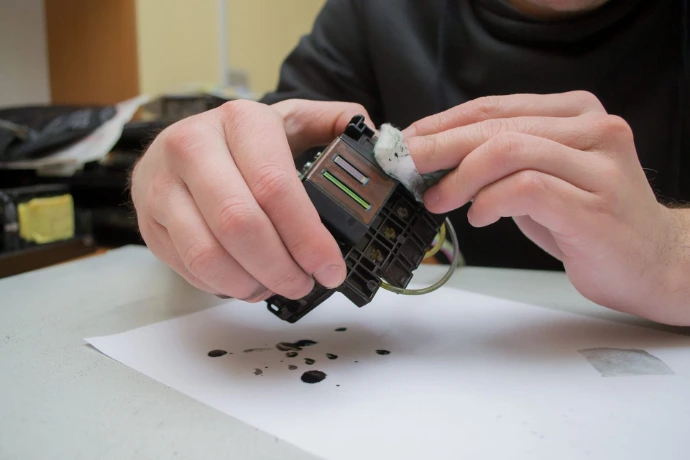
2. Cleaning the Printer and Print Heads
Most modern printers include an automatic head-cleaning feature.
Manual Cleaning: Use a microfiber cloth to gently remove dust and debris. Warning: Always turn off the printer before cleaning the interior.
Automatic Cleaning Steps:
Press the Home button on the printer's control panel.
Select Auto Cleaning (under the Maintenance menu).
Select Start to begin the process.
Print a Nozzle Check pattern afterward to confirm the fix.
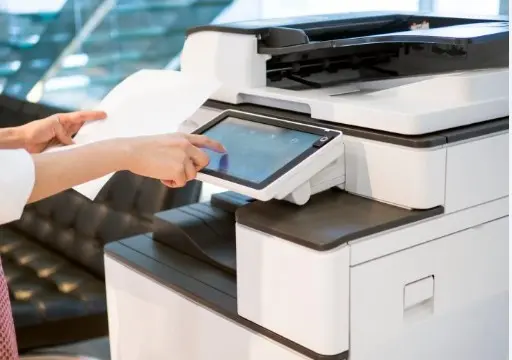
3. Performing Updates
Manufacturers frequently release firmware and driver updates to improve stability and fix bugs.
How to Update via Web Interface:
Open your browser and enter the Printer’s IP Address.
Navigate to the Device or Settings tab.
Click on Update Firmware and select Check for updates.
If an update is available, agree to the terms and click Start Update.