
Before trying to clean the printer manually or taking it in for service, you can use Epson's built-in Nozzle Check and Head Cleaning tools in Windows.
This guide walks you through the process from the printer settings all the way to checking the final print quality.
Note: Menu names and the exact steps may vary slightly depending on your Windows version and the Epson driver installed on your computer.
1. Open Printers & Scanners
Open the Start menu and search for:
Printers & Scanners
Then open the printer settings.
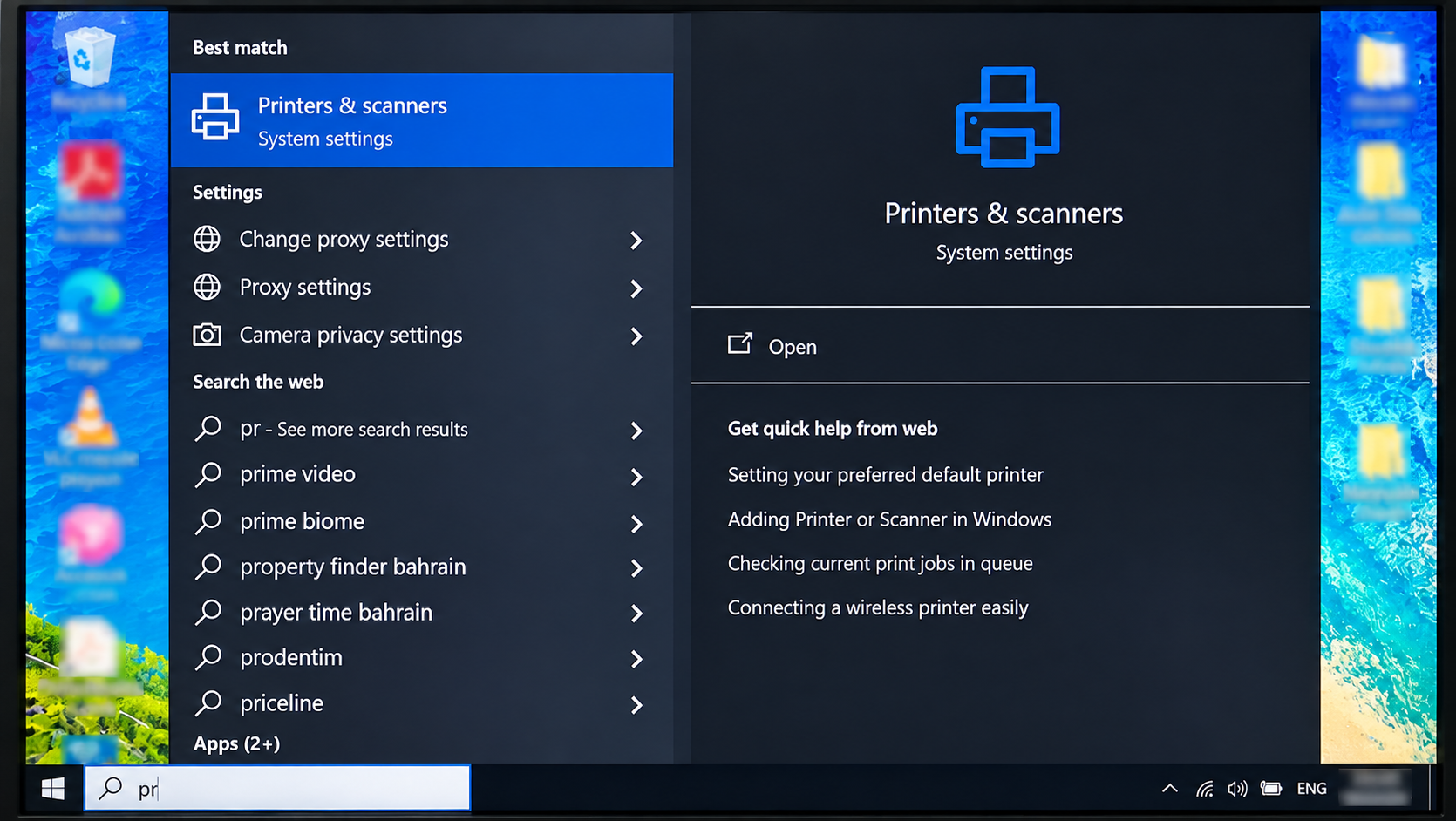
2. Select Your Epson L3150
Find:
EPSON L3150 Series
Select the printer, then click Manage.
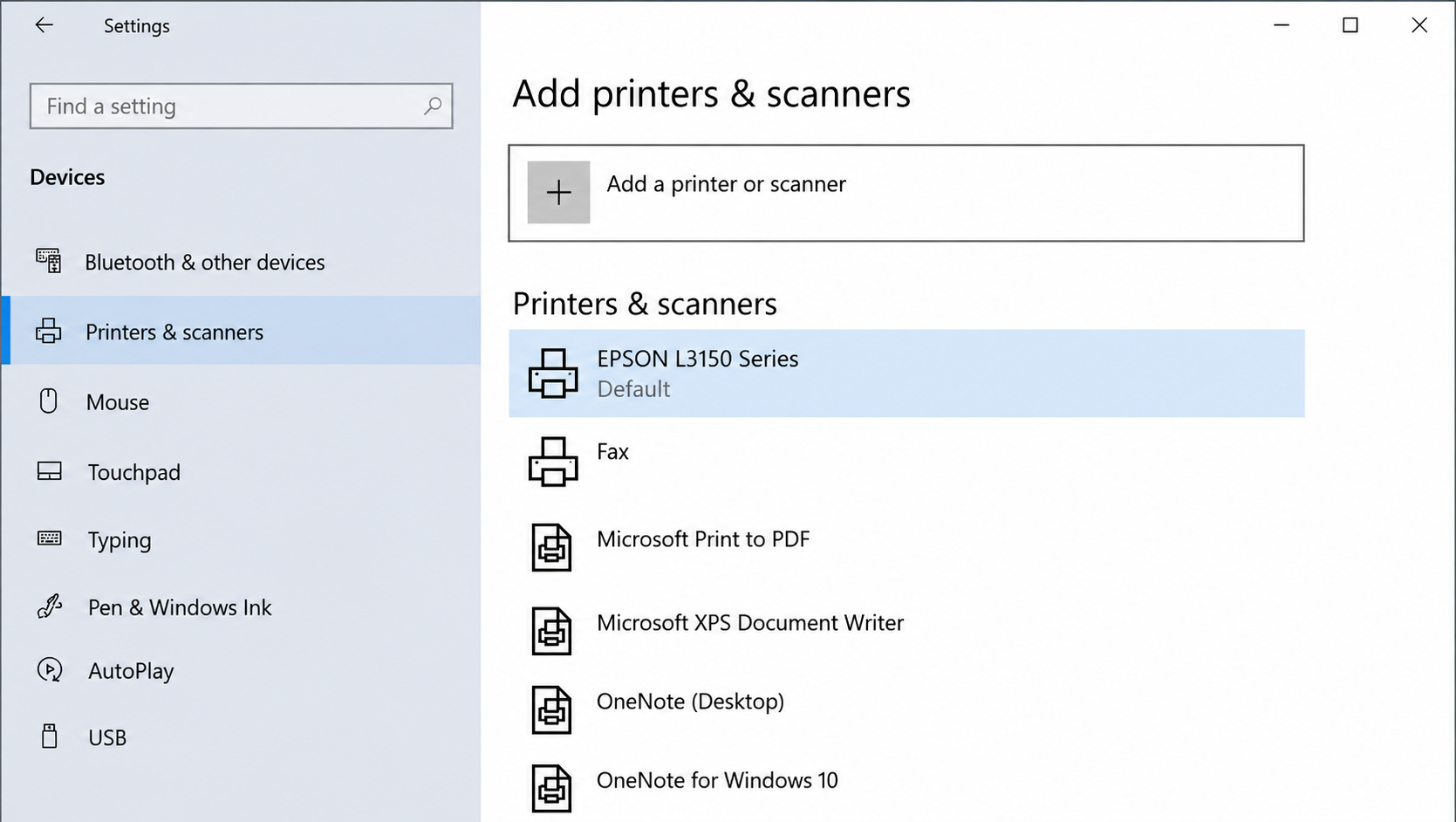
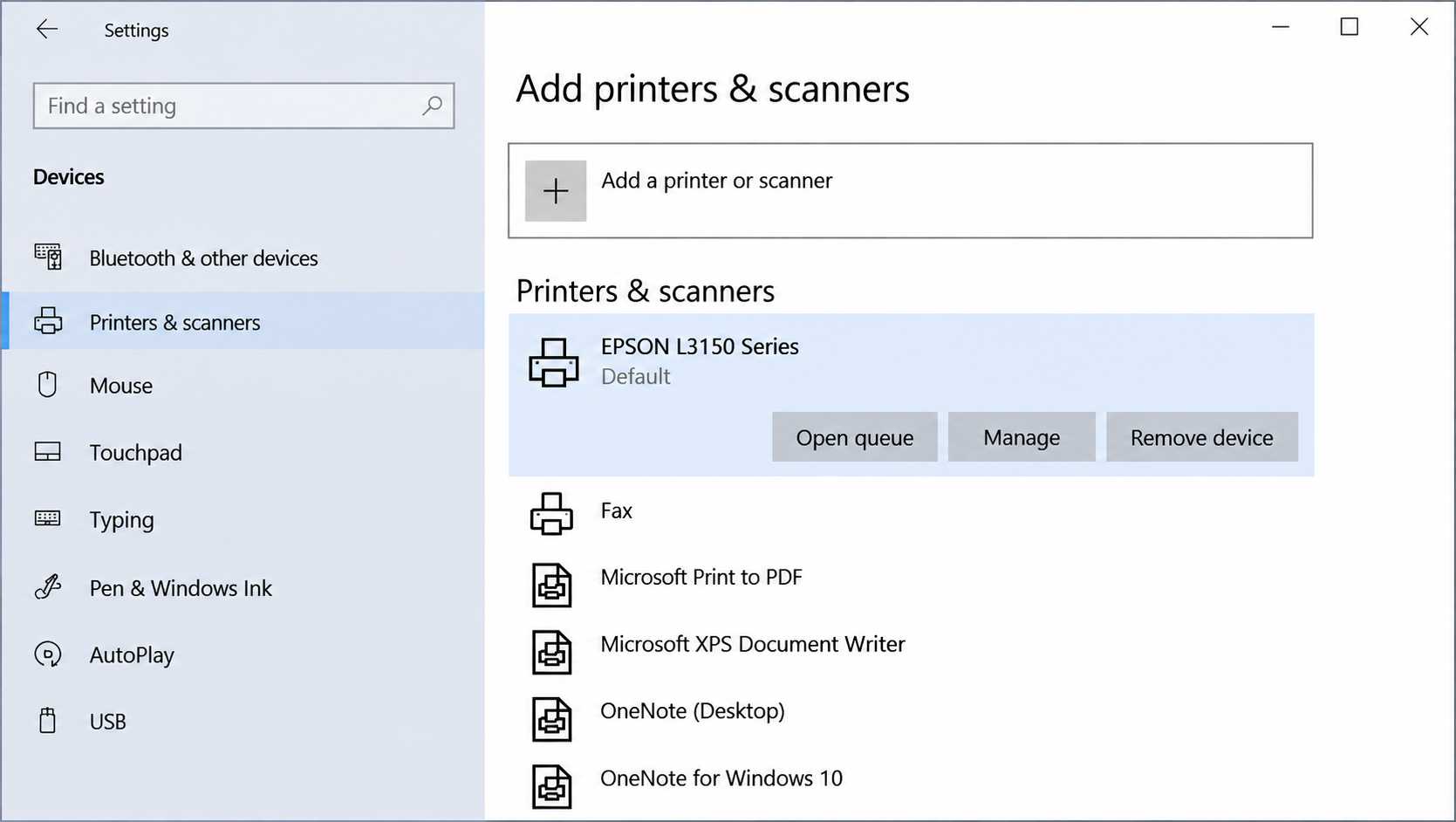
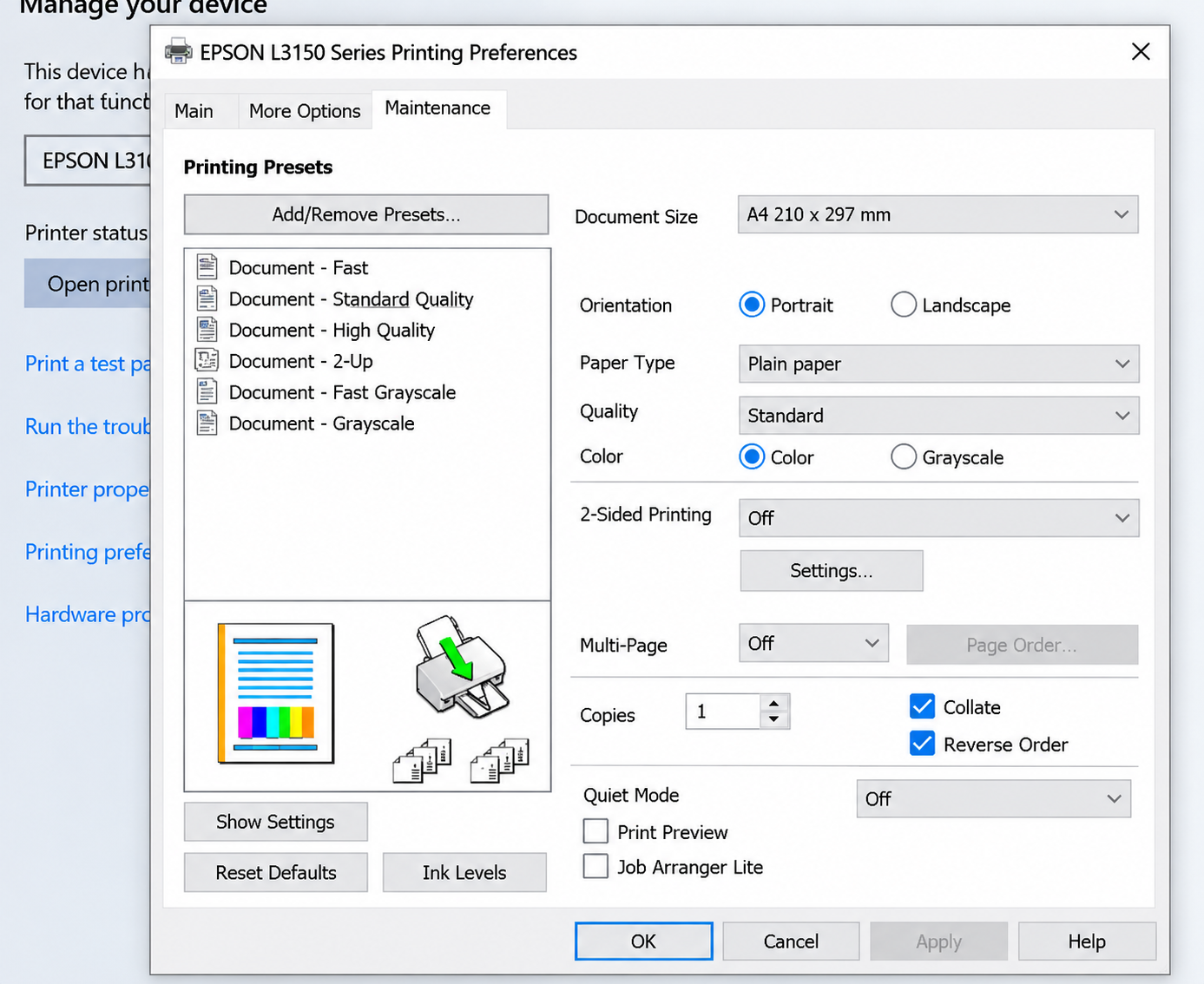
3. Open Printing Preferences
From the printer management screen, select:
Printing Preferences
This will open the Epson printer settings.
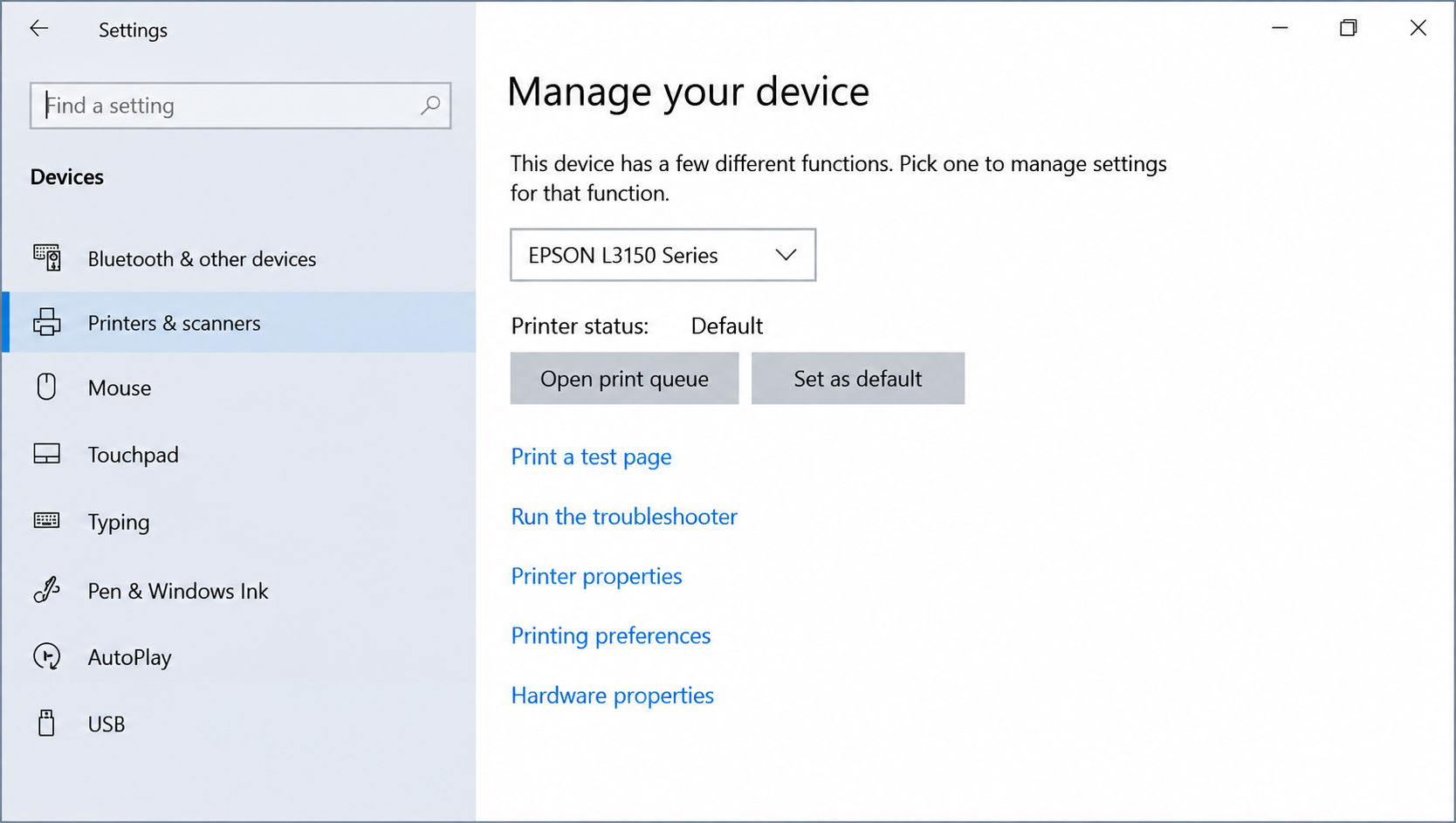
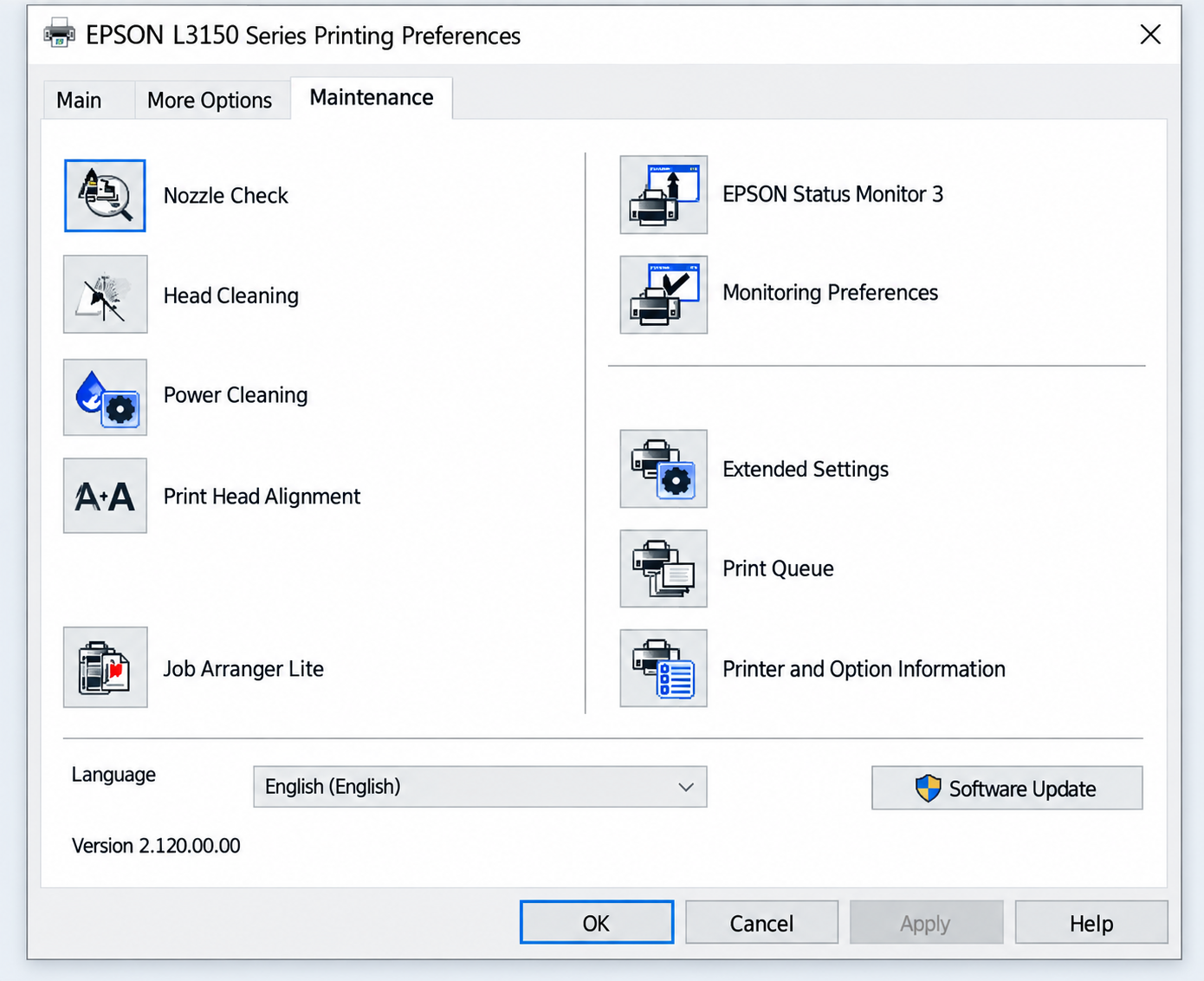
4. Go to the Maintenance Tab
In the EPSON L3150 Series Printing Preferences window, open the:
Maintenance tab.
You'll find several printer maintenance tools here, including:
- Nozzle Check
- Head Cleaning
- Power Cleaning
- Print Head Alignment
5. Run a Nozzle Check First
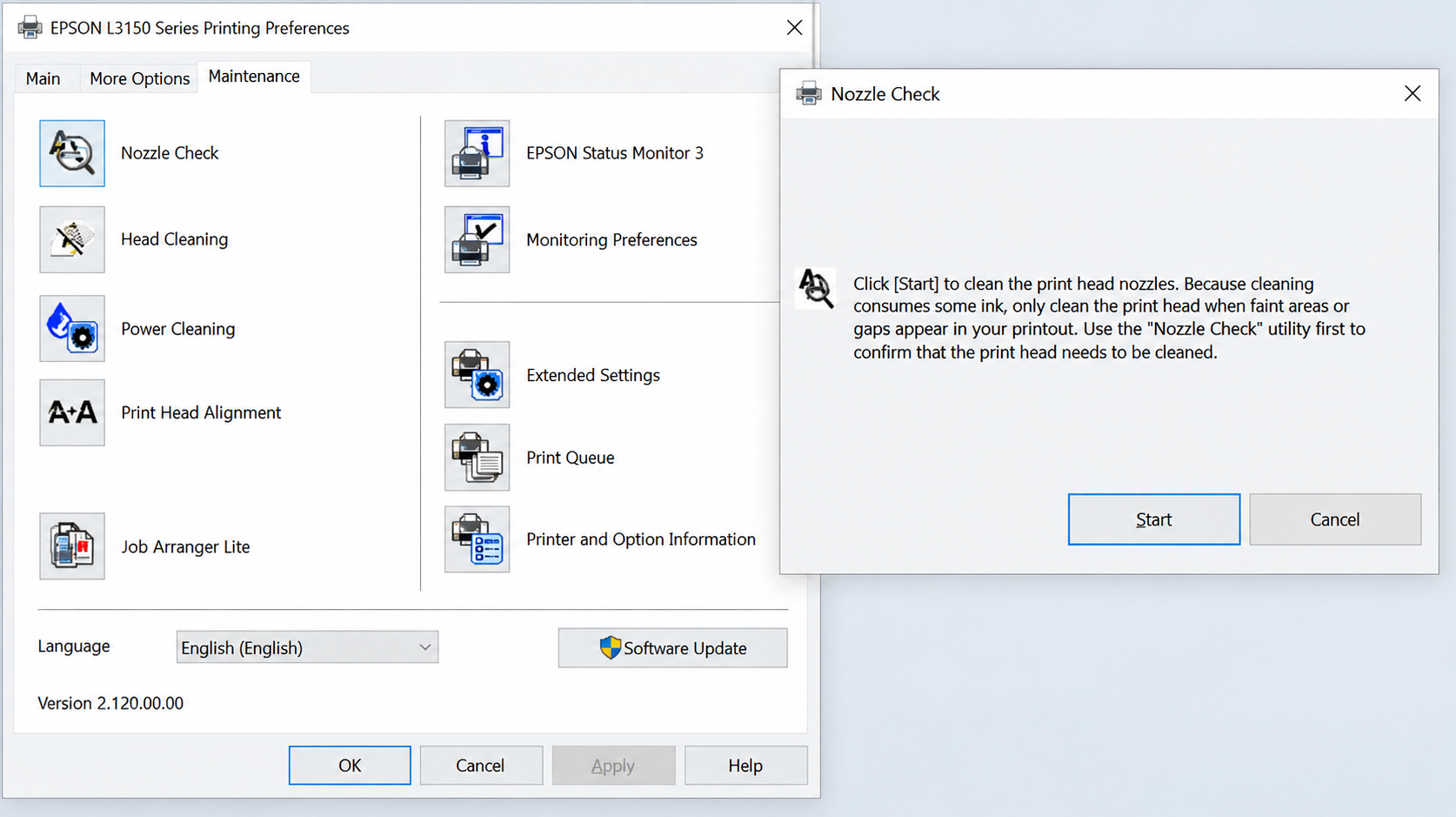
Before running a cleaning cycle, start with a Nozzle Check.
Select Nozzle Check and follow the on-screen instructions to print a test pattern.
The pattern helps you see whether the print head nozzles are working properly or if there are gaps in the output.
Check the pattern
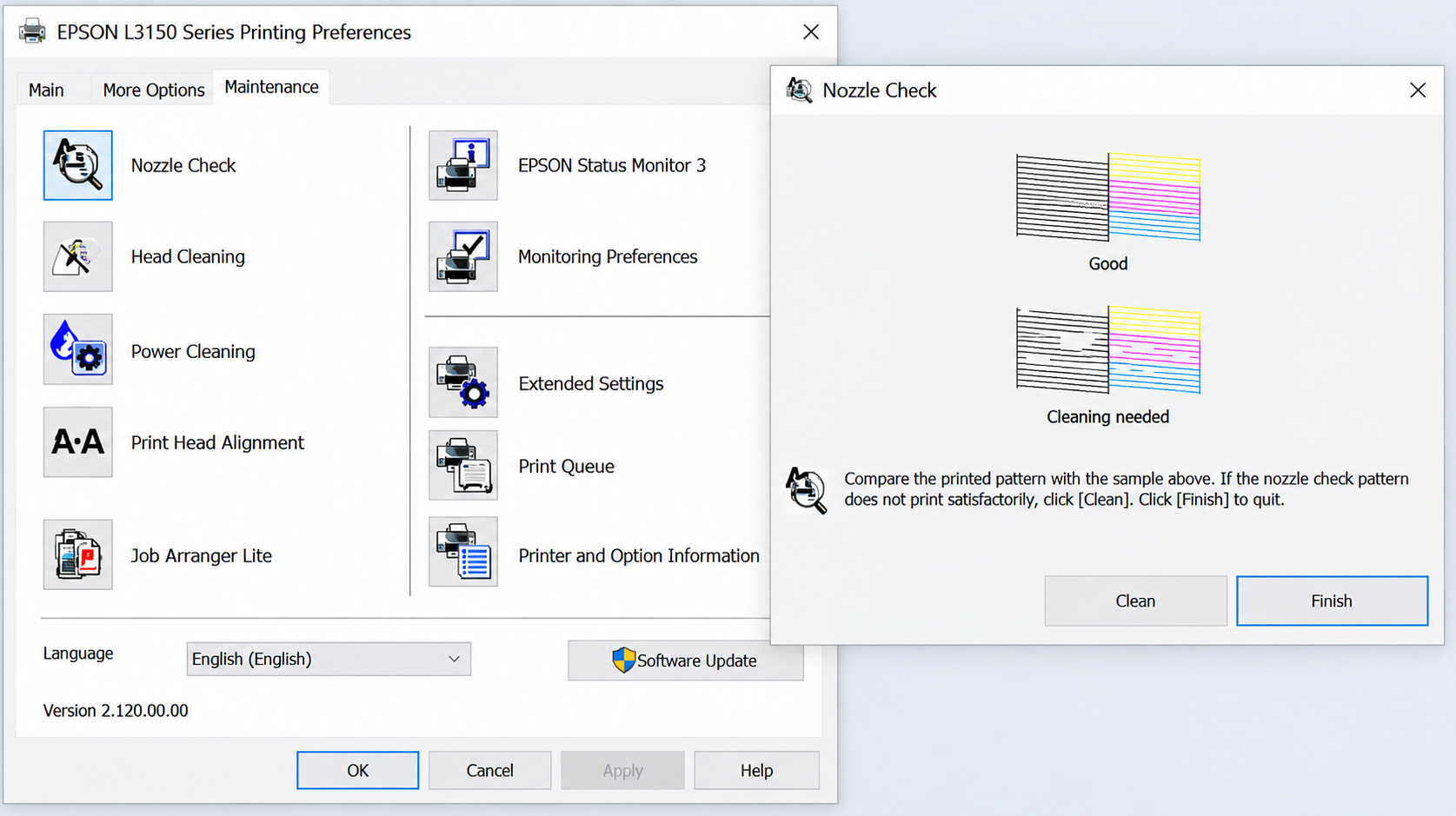
Compare your printed page with the examples shown on screen.
Good
If the lines are complete and consistent, the print head may not need cleaning.
Cleaning needed
If you can see gaps or missing sections, continue with Head Cleaning.
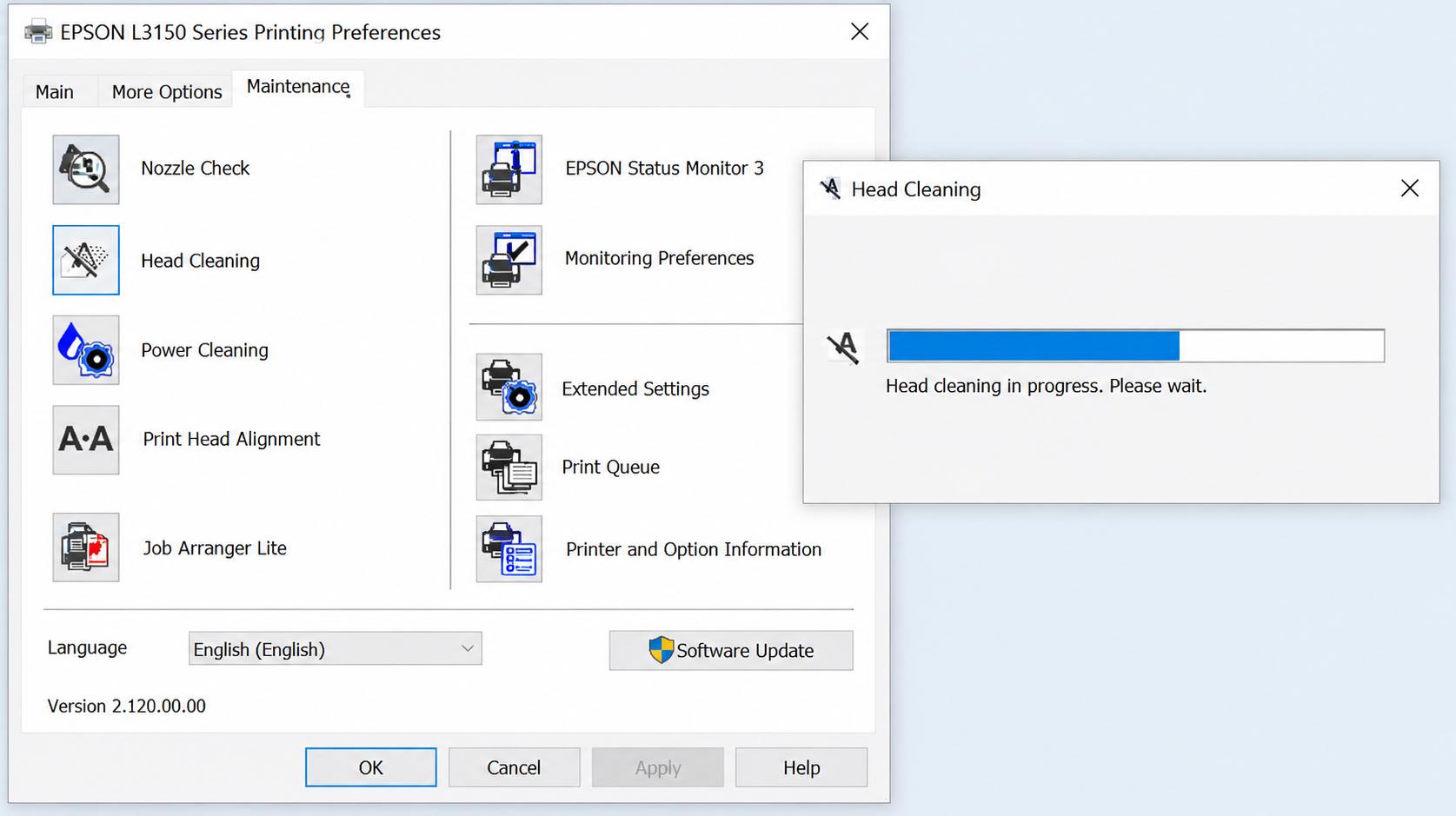
6. Run Head Cleaning
If the nozzle check shows missing lines, return to the Maintenance tab and select:
Head Cleaning
Then click:
Start
The printer will begin its cleaning cycle.

7. Let the Cleaning Cycle Finish
Once the process starts, you'll see a progress window.
Allow the cleaning cycle to finish completely, and avoid switching the printer off while the process is running.
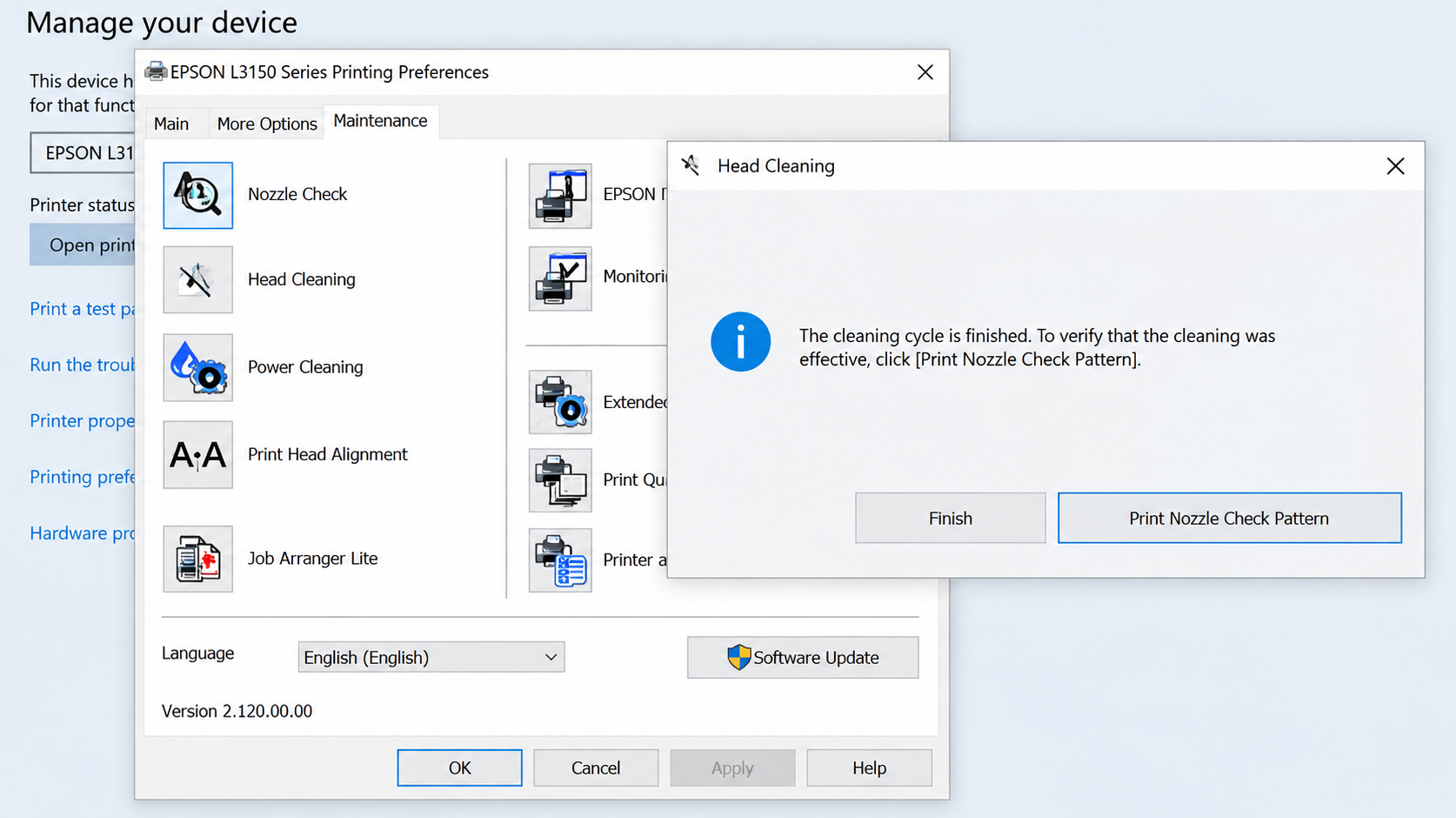
8. Print Another Nozzle Check Pattern
When the cleaning cycle is complete, select:
Print Nozzle Check Pattern
This prints a new test page so you can see whether the cleaning improved the print quality.
9. Compare the Results
Check the new pattern against the examples shown on screen.
✅ Good
If the lines are now complete and consistent, the nozzle check looks normal.
⚠️ Cleaning needed
If there are still visible gaps or missing lines, the printer may need further cleaning or inspection depending on the condition of the printer.
Should You Run Head Cleaning More Than Once?
Head Cleaning uses ink, so avoid running several cleaning cycles back-to-back unless they're actually needed.
Start with a Nozzle Check and use Head Cleaning when the test pattern shows a problem.
If missing lines or colors continue after cleaning, further diagnosis may be more useful than repeatedly running the cleaning cycle.
Still Having Problems With Your Epson L3150?
If you've followed these steps and your Epson L3150 is still printing with missing lines, incorrect colors, or gaps in the nozzle check pattern, HEX Technology can inspect the printer and identify the appropriate solution based on its condition.
WhatsApp: +973 3321 7825