
CapCut Desktop is one of the most popular video editing applications, offering creators a larger workspace and advanced editing tools for a more efficient editing experience.
If you already use CapCut on your smartphone and want to continue editing on your computer, you may notice that some versions of CapCut Desktop don't always provide a direct email sign-in option. Instead, signing in with a QR Code is the fastest and most convenient way to access your account and sync your projects between your phone and computer.
In this guide, we'll walk you through the entire process step by step.
Step 1: Make Sure You're Signed In on Your Phone
Before opening CapCut Desktop, launch the CapCut app on your smartphone and confirm that you're already signed in.
Important: Use the same CapCut account that you want to access on your computer. The QR Code login works by linking your desktop session to the account currently signed in on your mobile device.
If you're not signed in yet, log in to your account first before proceeding.
Step 2: Open CapCut Desktop
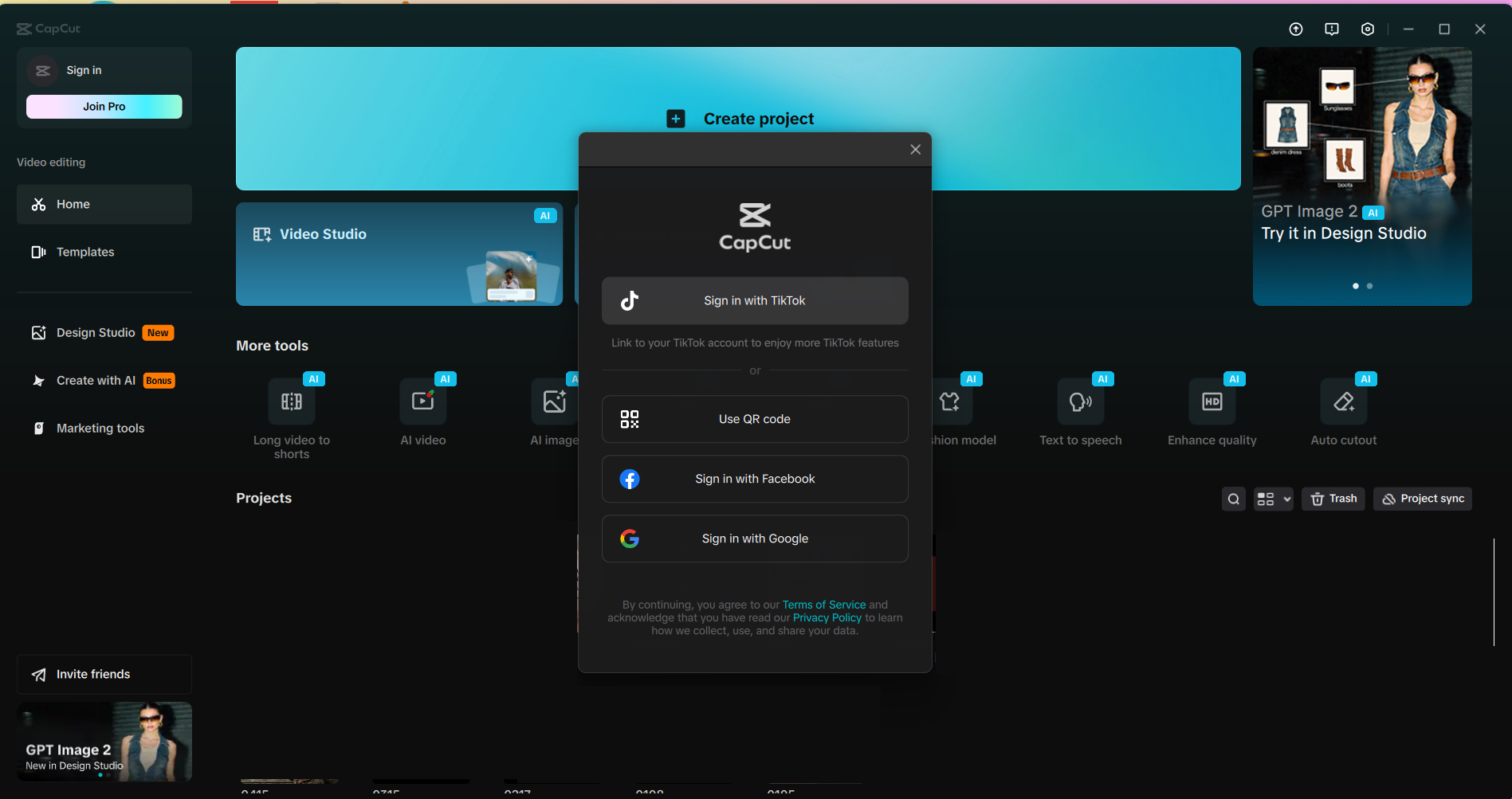
Launch CapCut Desktop on your computer and wait for the login screen to appear.
Step 3: Choose the QR Code Login Option
On the login screen, select QR Code Login (or Scan QR Code, depending on your version) to display the QR code on your computer screen.
Note: The wording of this option may vary slightly depending on the version of CapCut you're using.
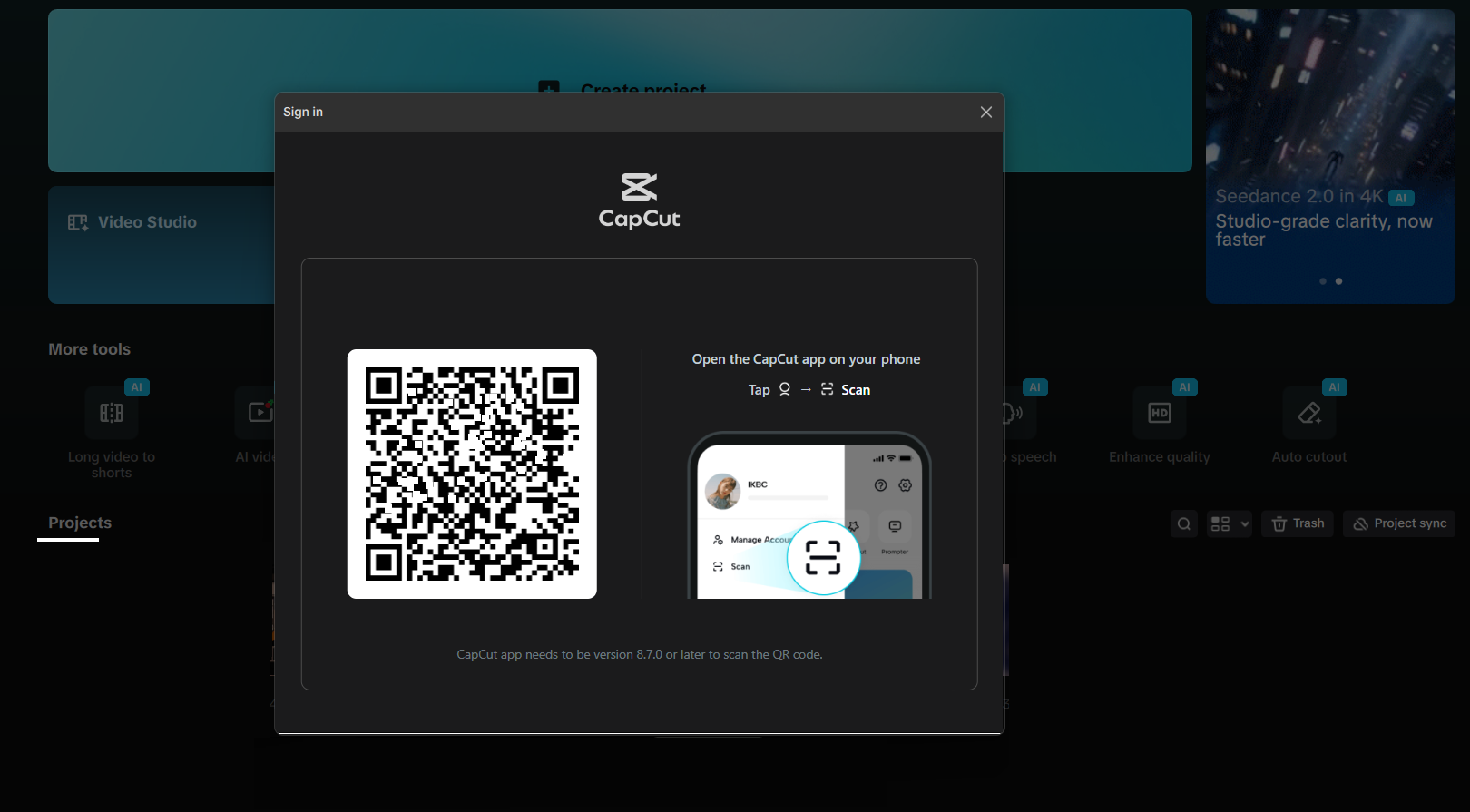
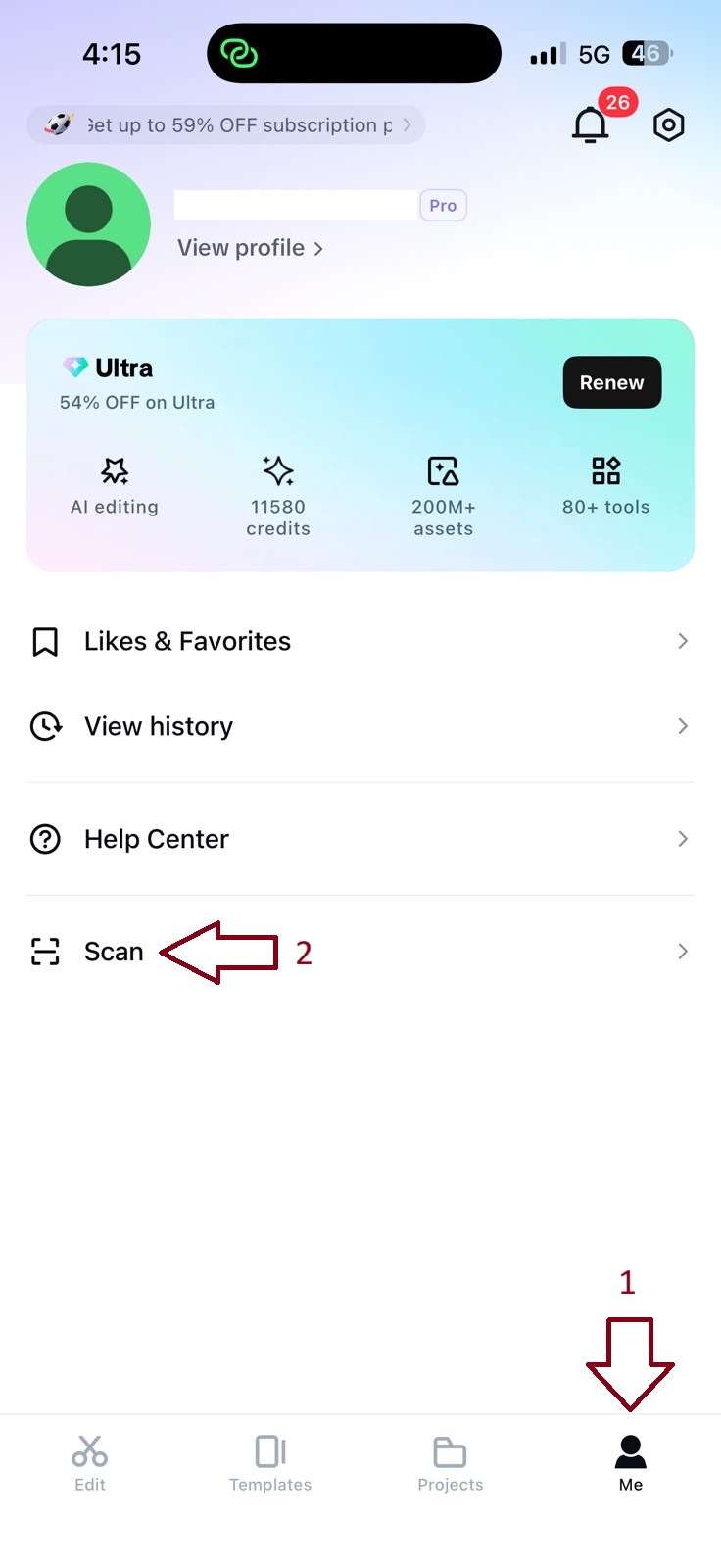
Step 4: Open the QR Scanner in the Mobile App
On your smartphone:
- Open the CapCut app.
- Go to Me (Profile).
- Tap the Scan or QR Scanner icon.
Step 5: Scan the QR Code
Point your phone's camera at the QR code displayed on your computer screen.
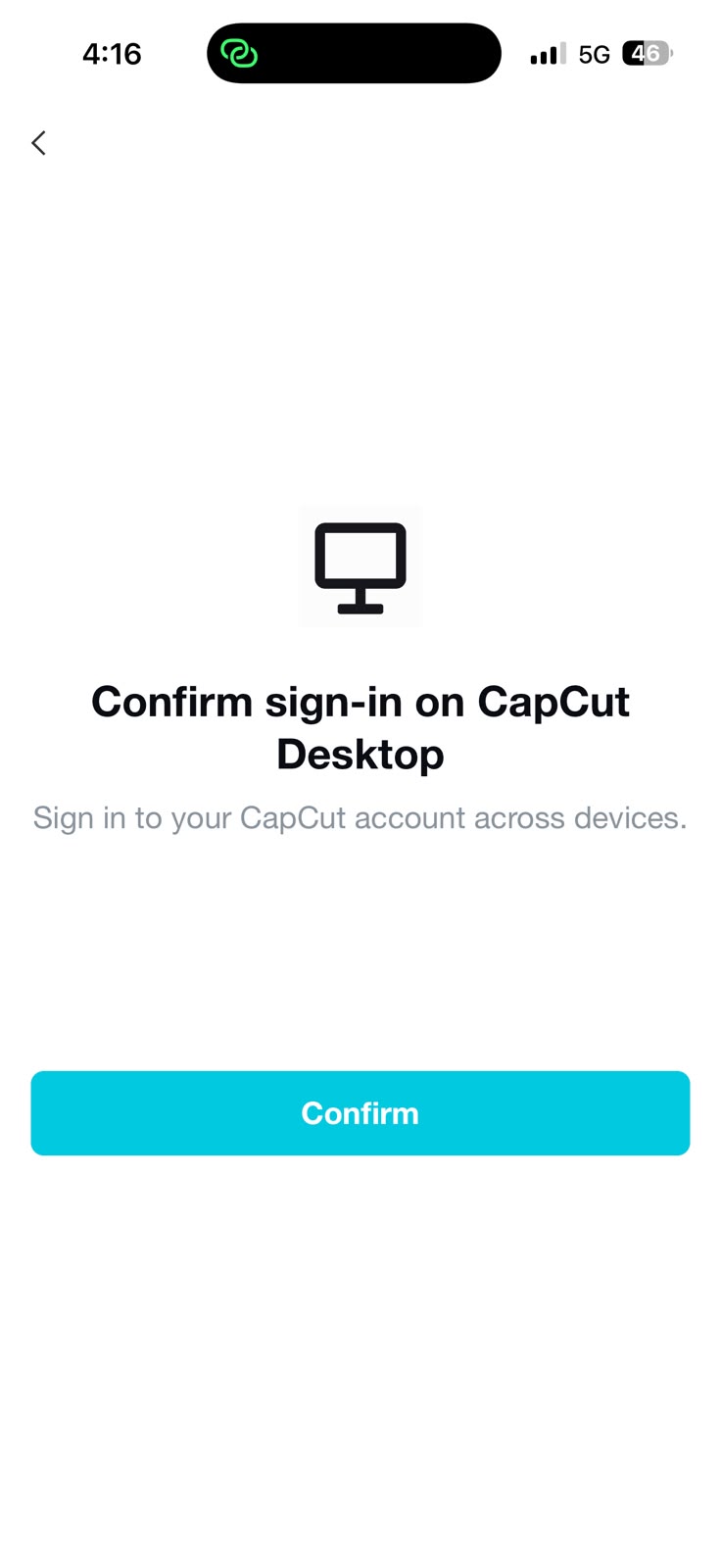
Within a few seconds, CapCut will ask you to confirm the login request.
Step 6: Confirm the Login
Tap Confirm or Allow Login on your smartphone.
Once confirmed, you'll be signed in automatically to CapCut Desktop, and your account will be synchronized with your computer.
Why Use QR Code Login?
Signing in with a QR code offers several advantages:
✅
Quick and hassle-free login.
✅
No need to enter your email address or password manually.
✅
Automatic account synchronization between your phone and desktop.
✅
A secure and convenient way to access your projects.
Using a QR Code is the fastest and easiest way to sign in to CapCut Desktop, especially if you already edit videos on your smartphone. In just a few simple steps, you can securely access your account, synchronize your projects, and enjoy a larger workspace with more powerful editing tools.
Frequently asked questions
Available sign-in methods may vary depending on your version of CapCut Desktop. While some versions support multiple login options, others primarily encourage signing in using a QR Code or supported providers such as Google or TikTok. Using a QR code remains the quickest and easiest way to connect your desktop with your existing mobile account.
Try the following:
- Update CapCut Desktop to the latest version.
- Restart the application.
- Refresh the login screen.
- Check your internet connection.
If your projects are saved to your CapCut Cloud account, they'll become available automatically after signing in with the same account on your desktop.